It's a sinking feeling I know all too well. You’ve launched your Google Ads campaign, clicks are rolling in, but that all-important conversion column is stuck on zero. When conversions aren't tracking in your Google Ads ecommerce account, you’re effectively flying blind—spending money without knowing what’s actually driving sales.
That empty column isn't just a vanity metric; it's the heartbeat of your paid advertising strategy. Without accurate data, Google's algorithms can't learn what works, your budget gets wasted on the wrong clicks, and your Return on Ad Spend (ROAS) plummets. I've seen it countless times with new clients who come to us at our marketing agency in Melbourne, frustrated and believing their ads aren't performing, when the real culprit is a broken tracking setup.
The first step is always diagnosis. You need to figure out where the breakdown is happening. This flowchart simplifies the process, helping you pinpoint the likely source of the problem.
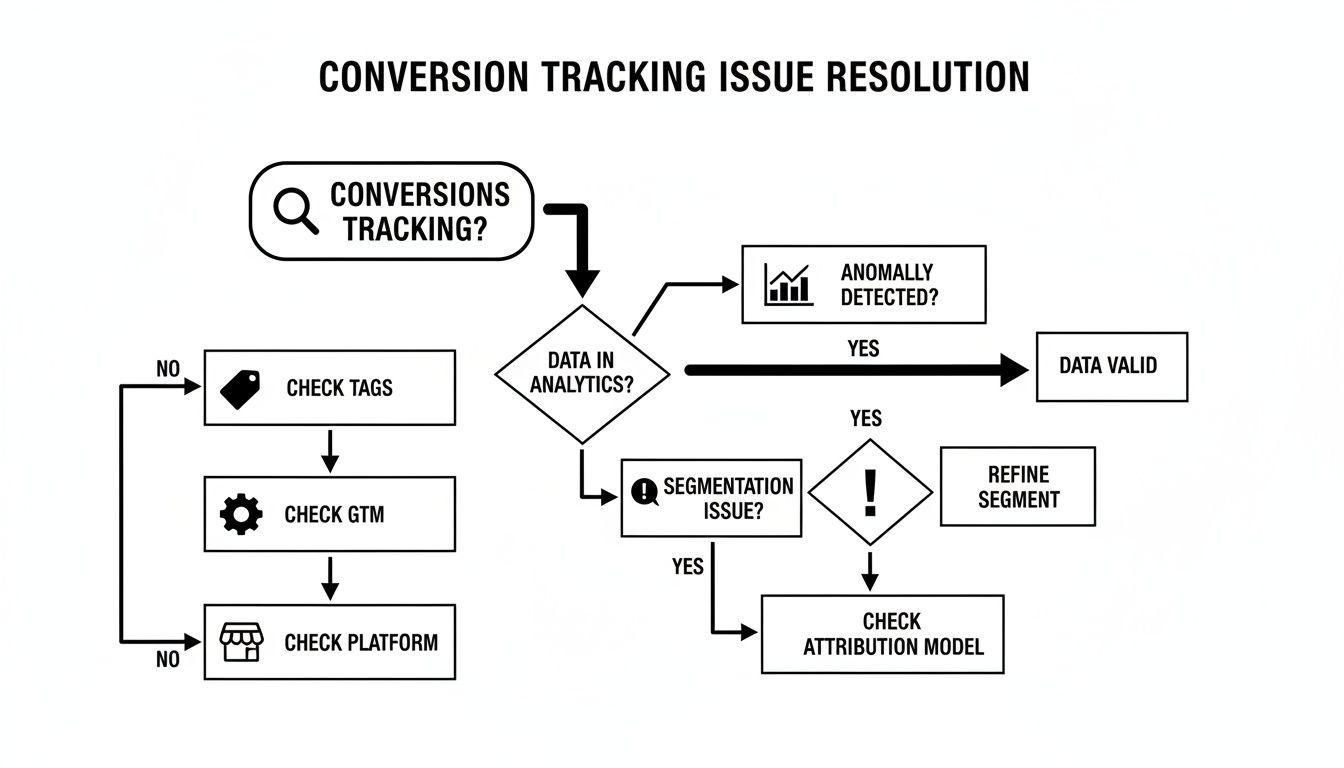
As you can see, the problem almost always lies in one of three core areas: your on-site tags, your Google Tag Manager (GTM) container, or the specific configuration of your ecommerce platform.
Common Conversion Tracking Failure Points Checklist
So, where do things typically go wrong? To make this easier, I've put together a quick checklist based on the issues I troubleshoot most often for ecommerce businesses.
| Potential Issue Area | What to Check For | Common Platforms Affected |
|---|---|---|
| On-Site Tag Implementation | Tag is missing, duplicated, or placed in the wrong section of the site's code (e.g., footer instead of <head>). |
Custom-coded sites, WordPress/WooCommerce themes with manual edits. |
| Google Tag Manager | Triggers are firing on the wrong pages, variables aren't capturing purchase values correctly, or the container isn't published. | Any platform using GTM for tag management (highly common). |
| Platform-Specific Integrations | Native Shopify Google & YouTube app is misconfigured, or a WooCommerce plugin is conflicting with the theme or another app. | Shopify, WooCommerce, BigCommerce. |
| GA4 & Google Ads Link | The platforms aren't properly linked, or the GA4 conversion event hasn't been imported into Google Ads. | All platforms using GA4 as the conversion source. |
This table should help you quickly narrow down the possibilities. From simple copy-paste errors to more complex plugin conflicts, the issue is usually hiding in one of these areas.
The True Cost of Inaccurate Data
A broken tracking setup does more than just show a zero in your reports. Here at our digital marketing agency in Melbourne, I've seen misconfigured tags on Shopify and WordPress sites cause businesses to lose visibility on up to 40% of their actual sales data.
Think about it. Local benchmarks show the average Google Ads conversion rate for retail sits around 3-4%. If your tracking is broken, your Cost Per Acquisition (CPA) will look artificially high, making a profitable campaign seem like a money pit. This often leads to pausing ads that were actually working.
As a marketing agency in Melbourne, the first thing we check isn't the ad creative or the keywords; it's the data pipeline. A broken tracking setup means every decision you make is based on a guess, not on evidence.
Fixing this is non-negotiable for scaling your store. Understanding key metrics like ROI vs ROAS is crucial, but these calculations are meaningless without accurate data feeding them. Before you spend another dollar, you need to be certain that every sale is being correctly attributed back to the click that generated it. The following sections will guide you through diagnosing and fixing the specific issues holding your campaigns back.
Solving Tracking Issues on Shopify and WooCommerce
There's no single fix when your conversions stop tracking; the right solution is almost always tied to your ecommerce platform. Having spent years as a Shopify and WordPress developer here in Melbourne, I've seen firsthand how one tiny, platform-specific setting can bring your entire data pipeline to a grinding halt.
Let’s dig into the most common failure points I see on Shopify and WooCommerce and, more importantly, how to fix them.
Shopify: The Native App vs. Manual GTM
For Shopify store owners, the first port of call is usually the native Google & YouTube app. It’s designed to be a simple, plug-and-play solution, and for many new stores, it handles basic purchase tracking just fine.
But its simplicity is also its biggest weakness. The app offers very little customisation and quickly falls short when you need to track more specific events or deal with a complex setup. I've lost count of the number of times I've seen it conflict with third-party apps, leading to missing or even duplicated transaction data.
As a rule of thumb, if you're spending more than a few thousand dollars a month on ads, you've probably outgrown the native app. The lack of control and debugging tools makes it a risky bet for any serious ad spend.
This is the point where I always recommend a manual Google Tag Manager (GTM) setup. Moving to GTM gives you complete control over what data you collect and precisely when your tags fire. For any serious Shopify development partners, a proper GTM implementation is standard practice, not an afterthought.
A frequent mistake I come across is incorrect GTM code placement. The main GTM container snippet must be placed high in the <head> of your theme.liquid file, and the <noscript> part needs to go right after the opening <body> tag. Too often, people forget to add the necessary GTM scripts to the checkout pages (which requires a Shopify Plus plan for full access), causing a total loss of tracking at the final, most crucial step.
WooCommerce: Plugin Conflicts and Data Layer Issues
For my fellow WordPress and WooCommerce developers, the game is a bit different. We rely heavily on plugins, and while they're incredibly powerful, they can also be the main source of tracking headaches. The go-to solution is a plugin like GTM4WP (Google Tag Manager for WordPress), which does a brilliant job of injecting the GTM container and creating a basic data layer.
But here’s the catch: a poorly coded theme or a conflicting plugin can stop GTM4WP from getting the ecommerce data it needs. I once worked with a client whose sales weren't tracking because their theme's custom checkout template didn't include the standard WooCommerce hooks that GTM4WP relies on to see purchase data. The tag was firing, but it was sending zero transaction value or product IDs.
Here’s how to troubleshoot this yourself:
- Check the Data Layer: Use GTM's Preview mode and run a test purchase. When you land on the confirmation page, look for a
purchaseevent in the timeline on the left. Click on it and then check the "Data Layer" tab. You should see detailed info liketransaction_id,value,currency, and anitemsarray. - If Data is Missing: This usually points to a theme or plugin conflict. A quick way to test this is to temporarily switch to a default WordPress theme (like Twenty Twenty-Four) and disable other plugins to see if the data shows up. If it does, you’ve found your culprit and can start isolating the specific conflict.
- Dynamic Values are Key: Make sure your GTM setup is configured to pull dynamic values for transaction totals and currency from the data layer. Hard-coding a static value is a common mistake that makes your ROAS data completely useless.
Whether you're a hands-on WordPress developer or a Shopify store owner, the principle is the same. You need a clean, uninterrupted flow of data from your platform to the data layer, and from there into Google Tag Manager. If that chain breaks at any point, your Google Ads account is flying blind.
Getting Google Tag Manager Right for Clean Ecommerce Data
Google Tag Manager (GTM) is the command centre for all your tracking. When it’s set up correctly, it's brilliant. But a tiny mistake in GTM can cause massive data headaches, and honestly, it's where most tracking issues begin. I've audited hundreds of GTM containers for ecommerce businesses, and I see the same fundamental errors time and time again.
If you’re pulling your hair out because conversions aren't showing up in your Google Ads account, GTM is one of the first places I'd look. Let's get past the basic setup and dive into the details that make or break your data accuracy.
The Two GTM Tags That Matter Most
When it comes to Google Ads tracking, two tags are completely non-negotiable. If you miss or misconfigure either of them, your tracking is almost guaranteed to fail.
- Google Tag: This is the foundation. It’s responsible for loading all the necessary tracking libraries on every single page of your site. It needs to be configured with your Google Ads "AW-" ID and set to fire on the "Initialisation – All Pages" trigger. Think of it as the main power line to your house; without it, none of the appliances will work.
- Google Ads Conversion Tracking Tag: This is the tag that actually sends the conversion data back to Google Ads. It holds your specific Conversion ID and Conversion Label. Critically, this tag should only fire when a purchase is successfully completed.
A classic mistake I see is people forgetting the main Google Tag. They set up the conversion tag perfectly, but because the foundational library isn't loaded across the site, the conversion tag has nothing to communicate with. The new Google Tag has also absorbed the old Conversion Linker tag's job, which is essential for tying conversions back to ad clicks by setting first-party cookies. As long as the Google Tag is firing everywhere, you're covered.
Creating a Bulletproof Purchase Trigger
You only want to count a conversion when a customer has actually paid you. This means your conversion tag needs a trigger that fires exclusively on your thank you or order confirmation page—and absolutely nowhere else.
My go-to method is to create a custom event trigger. For platforms like Shopify or WooCommerce, the data layer on the confirmation page will usually contain a 'purchase' event. This is the perfect signal to use.
Here’s a quick rundown of how to set it up:
- Find the Event Name: Jump into GTM’s Preview mode, run a test purchase, and watch for the exact name of the purchase event on the confirmation page. It might be
purchase,transaction, or something custom. - Build the Trigger: In GTM, create a new trigger and select the "Custom Event" type.
- Enter the Name: Pop in the exact event name you found in the data layer. Set it to fire on "All Custom Events."
- Link it to Your Tag: Go back to your Google Ads Conversion Tracking tag and assign this new trigger to it.
By using a specific
purchaseevent instead of a simple "Page View" trigger for the thank you page, you avoid accidentally counting conversions if someone bookmarks and revisits the page later. It guarantees the tag only fires when the transaction data is actively pushed.
Debugging Your Setup with Preview Mode
Guesswork has no place in tracking. GTM's Preview mode is your best friend for figuring out what’s gone wrong. When you connect it to your site, you get a real-time log of every tag, trigger, and variable as it happens.
Start by running a full test purchase from start to finish. As you move through the checkout process, keep an eye on the event stream on the left side of the Tag Assistant window. Once you land on the confirmation page, look for your purchase event.
Click on that event and check the "Tags Fired" section. Your Google Ads Conversion Tracking tag should be sitting right there. If you find it under "Tags Not Fired," click on it. GTM will show you exactly which condition in your trigger failed, telling you precisely what to fix.
From here, you can also inspect the Data Layer tab to confirm that dynamic values like revenue and transaction ID are being passed correctly. This step-by-step validation is the only way to be 100% sure your fix has worked before you publish the container.
Troubleshooting Advanced GCLID and Cross-Domain Problems
Sometimes, the reason your conversions aren't tracking isn't a simple broken tag. The issue is buried deeper in your website's architecture, and this is where many businesses get stuck and end up calling our marketing agency in Melbourne for help.
When the usual GTM debugging tools don't show anything obvious, it’s time to dig into the more complex issues like cross-domain tracking and the all-important GCLID.
Tackling Cross-Domain Tracking Glitches
Does your checkout process happen on a different domain or subdomain? This is a super common scenario I see, especially with third-party payment gateways or some older Shopify setups. A user might browse products on www.yourstore.com.au but complete their purchase on checkout.yourstore.com.au or even payments.thirdparty.com.
This domain switch completely breaks the user's journey in the eyes of your tracking scripts. That little cookie that identified the user as coming from your Google Ad on the first domain just doesn't get carried over to the second one. As a result, the conversion happens in a vacuum, completely disconnected from the ad click that started it all.
Fixing this means setting up cross-domain tracking in your Google Tag. Inside your main Google Tag configuration within GTM, you'll need to:
- Head to Configuration settings > Configure your domains.
- Add an entry and list all the domains involved in the user journey (e.g.,
yourstore.com.au,checkout.yourstore.com.au).
This simple setting tells Google to treat these separate domains as a single, unified journey. It lets the tracking information persist from the initial click all the way through to the final purchase, and it makes a massive difference.
The Mystery of the Missing GCLID
Now, let's talk about the GCLID, or Google Click Identifier. This is a unique parameter that Google Ads automatically sticks on the end of your URL whenever someone clicks your ad. It looks like a long, random string of characters (?gclid=...), and it’s the critical piece of data that tells Google a specific click led to a specific conversion.
If this GCLID parameter gets stripped from the URL before the user hits the conversion page, the attribution link is severed. Your conversion might still show up in Google Analytics, but Google Ads will have no idea it came from a paid click.
This often happens because of:
- URL Redirects: Your server might have a redirect rule that "cleans up" URL parameters, accidentally wiping out the GCLID in the process.
- Website Platforms: Some content management systems can be configured to automatically strip out any query parameters they don't recognise.
To test for this, just click one of your own live ads. Keep an eye on the URL in your browser as you navigate through your site. Does the ?gclid=... parameter stay visible on every single page load? If it vanishes, especially after a page redirect, you've found your culprit. You'll likely need to chat with your developer to adjust the server settings or redirect rules to preserve this crucial parameter.
Without a persistent GCLID, your auto-tagging is useless, and your campaign data will be completely off. You'll be spending money on ads without ever seeing a direct return in your reports, making it impossible to optimise your campaigns effectively.
When you're dealing with more stubborn tracking challenges like these, it might be worth looking into how to implement server-side tagging for Google Ads. This approach can provide a far more robust and reliable solution, as it helps bypass many of the browser-level issues that interfere with parameters like the GCLID.
These advanced problems can be incredibly frustrating, and they highlight a critical reality. A startling 25-35% of campaigns can suffer from a 'no recent conversions' status simply due to cross-domain tracking glitches, directly hurting ROAS for businesses. This problem is particularly prevalent on WordPress and WooCommerce sites, contributing to ecommerce conversion rates dropping from an average of nearly 7% down to just 3-4% when tracking fails.
Validating Your Fix and Future-Proofing Your Tracking
Right, you’ve applied a fix. But just pushing a change live and hoping for the best is a recipe for disaster. It’s like sending a package with no tracking number – you’re just crossing your fingers it gets there.
After you've been tinkering in your GTM container or theme files, you absolutely need to confirm that your conversion data is actually flowing correctly. Let me walk you through the exact process I use to validate every single tracking fix, from real-time tests to making your whole setup more resilient for the future.
Use a Test Purchase to Get Real-Time Feedback
The single most reliable way to know if your fix worked is to act like a real customer. Don't sit around waiting for the next organic sale. Make a test purchase yourself.
Before you start, get two browser tabs open and ready:
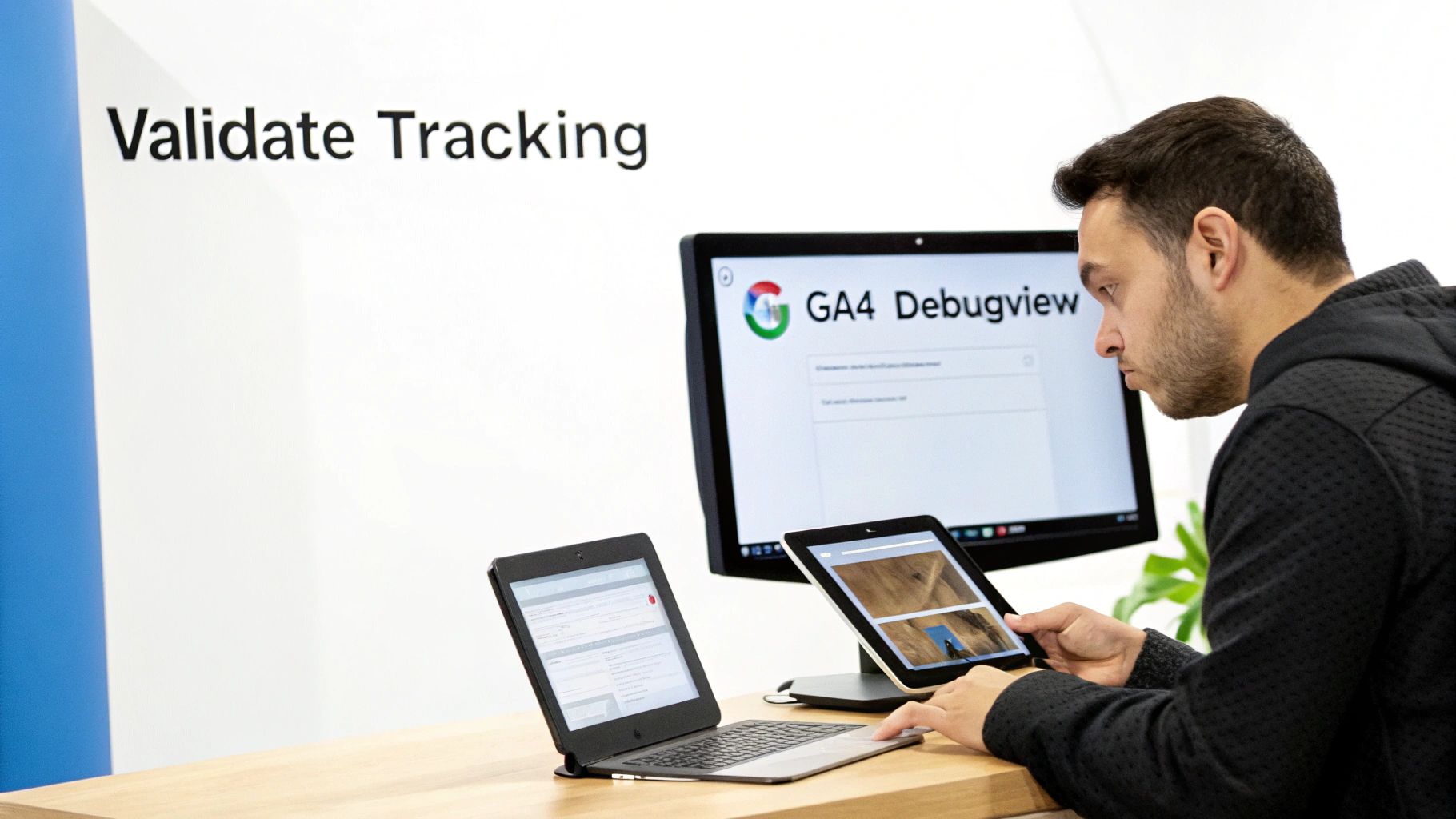
- Google Tag Manager Preview Mode: This is your live feed. It shows every tag, trigger, and variable firing (or not firing) as you move through your site.
- Google Analytics 4 DebugView: This shows you the raw event data hitting GA4 in real-time, confirming Google is actually receiving it.
Now, go through the entire purchase flow on your website. Add something to the cart, head to checkout, and complete the order. All the while, keep one eye on that GTM Preview window.
When you land on that final 'Thank You' page, you should see your Google Ads Conversion Tracking tag jump from the "Tags Not Fired" section up to "Tags Fired".
If it fired, great. That's the first hurdle cleared. Now click on the tag itself and inspect the variables. Are the transaction_id and value populated with the correct details from your test order? If they are, you're nearly there.
Check the Data Is Landing in Google Ads
With the tag firing as it should, the final piece of the puzzle is seeing that data show up inside Google Ads. Jump into your Google Ads account and head over to Goals > Conversions > Summary.
Find the conversion action you’ve been working on. If its status was "Inactive" or "No recent conversions," don't panic if it doesn't change instantly. It can take up to 24 hours after a successful conversion for this to update.
After you've clicked a live ad and run that test purchase, the status should eventually flip to "Recording conversions". Seeing that change is the ultimate confirmation. It means your entire data pipeline is working again.
Future-Proof Your Setup with Enhanced Conversions
Fixing today's issue is one thing; building a tracking setup that can withstand what's coming is another. With all the privacy changes and the slow death of third-party cookies, you have to be proactive. This is exactly where Enhanced Conversions come in.
Enhanced Conversions let you send hashed, first-party customer data (like an email or phone number) along with your conversion tag. Google then uses this encrypted info to match conversions back to signed-in Google users who clicked your ads, filling in the gaps when traditional cookies fail.
Honestly, implementing Enhanced Conversions isn't a "nice-to-have" anymore. It's a critical step for clawing back lost conversion data and keeping your attribution accurate in a privacy-first world.
You can switch this on within your Google Ads conversion settings and then configure it in your Google Ads tag inside GTM. All it usually takes is setting up a variable to grab the user's email from the data layer on your checkout page, and you can seriously improve your tracking accuracy.
Why Server-Side Tagging Is the Next Step
The real frontier in future-proofing, though, is server-side tagging. Instead of data going from the user's browser straight to Google, it first hits a secure server that you control. This server then cleans and verifies the data before forwarding it to Google Ads, Meta, or any other platform.
Why is this becoming so important?
- It gets around ad blockers: Most ad blockers and browser privacy settings (like Apple's ITP) are built to target client-side scripts. Server-side tagging is far more resistant.
- It improves your data quality: You get full control over the data before it’s sent anywhere. You can add to it, clean it up, or strip out sensitive info.
- It makes your cookies last longer: Server-side lets you set first-party cookies with much longer lifespans, which is a huge help for attributing conversions that happen over days or weeks.
Sure, setting up a server-side GTM container takes a bit more technical know-how, but it's easily the most robust solution for making sure your tracking stays accurate for years. As a WordPress developer in Melbourne, it's a solution I'm implementing more and more for clients who truly depend on paid ads for their growth.
Your Top Ecommerce Conversion Tracking Questions Answered
After helping dozens of ecommerce businesses untangle these exact tracking headaches, I’ve heard it all. The same questions pop up time and time again. Here are the straight-up answers to the ones I hear most often at my digital marketing agency in Melbourne.
Why Is My Conversion Status "Inactive" or "No Recent Conversions"?
This is easily the one I get asked the most. When you see this, it simply means Google Ads hasn't seen a conversion from an ad click in the last 7 days. Your setup could be absolutely perfect, but the status won't budge until someone actually clicks a live ad and completes a purchase.
The quick fix? Go click one of your own ads, run a test purchase, and then give it up to 24 hours. If the status flips to "Recording conversions," you’re golden. If it doesn't, you've definitely got a break somewhere in the tracking pipeline that needs investigating.
Should I Use Native Google Ads Tags or Import GA4 Conversions?
I get this question constantly. While importing GA4 goals is an option, I strongly—and I mean strongly—recommend using the native Google Ads conversion tag, preferably set up through GTM.
The native Google Ads tag pipes reliable data directly into the ad platform, often within hours. This lets Google's bidding algorithms optimise your campaigns faster and more accurately, which is absolutely critical when you’re trying to scale your ad spend.
Relying on GA4 imports can create frustrating delays and attribution gaps. That's the last thing you need when you've got real money on the line.
How Much Is a Reasonable Budget for Google Ads?
For an ecommerce store, the "right" budget really hinges on your product cost and margins. But as a general starting point, I tell clients a monthly budget of at least $3,000 is needed to gather enough meaningful data for proper optimisation.
Anything less than that, and you're just not generating enough clicks to let Google's machine learning figure out who your ideal customers are. A smaller budget might work for super-niche products, but for most stores, that $3k/month mark is where you start to build real momentum. It’s a common conversation I have with businesses looking for an experienced Shopify developer in Melbourne.
Can Ad Blockers Stop My Conversion Tracking?
Yes, absolutely. Ad blockers and browser privacy settings (like Apple's Intelligent Tracking Prevention) are a massive cause of data loss. They are specifically built to block the client-side tracking scripts that most websites rely on by default.
This is exactly why server-side tagging is becoming so important. By routing data through a server you control before sending it to Google, you make your tracking far more resilient to these blockers and can reclaim a big chunk of that lost conversion data. For any serious ecommerce store, this is the future of reliable tracking.
If you're a business with a paid ads budget of at least $3k a month and you're tired of guessing whether your tracking is working, I'd love to offer you a low risk deal- get a month of paid ads management FREE. Apply now through our contact page. As a marketing agency based in Melbourne, Australia, Alpha Omega Digital also services clients from Sydney, Brisbane, Newcastle, Perth, Adelaide, Darwin and Hobart. Have a project in mind? Contact us.
[email protected]
Read more insights from our team on web design, paid ads, and growth strategy.