I've seen this exact scenario play out with so many business owners I work with. You're putting good money into Google Ads, your Shopify dashboard is lighting up with sales, but your Google Ads account? It's showing a big, fat, frustrating zero for conversions.
When your Google Ads conversions are not firing on Shopify, it’s almost always because of a broken link somewhere in the data chain. It could be anything from a botched tag setup, a theme update that quietly wiped your code, or a sneaky payment gateway redirect that stops the tracking script from ever loading on the confirmation page.
The Nightmare of Zero Conversions in Google Ads
It's a situation that turns campaign optimisation into a complete guessing game. As a marketing agency in Melbourne that lives and breathes eCommerce, this is one of the most common—and expensive—problems we troubleshoot for new clients.
The connection between Shopify's checkout and Google Ads can be surprisingly fragile. When it snaps, your power to make data-driven decisions just vanishes.
You're left completely in the dark, asking:
- Which keywords are actually bringing in sales?
- Is my ad creative working or just burning through cash?
- What's my real Return on Ad Spend (ROAS)?
This problem is especially painful in the hyper-competitive Australian eCommerce market. Benchmarks show that average conversion rates for Shopify stores hover between a slim 2% and 5%. When your tracking breaks, it's not uncommon for businesses to underestimate their true ROAS by up to 50% or more.
I remember one case study from an Australian agency that really highlighted this. They implemented a direct Google Ads conversion code on a client's Shopify store and it doubled their attributed sales compared to just importing from Google Analytics—jumping from 120 tracked purchases to over 240 in a single quarter. You can discover more insights about Google Ads conversion tracking to see the full impact.
Why Does This Happen So Often?
The root causes are often deceptively simple but buried deep within your store’s setup. A Shopify theme update might silently erase the custom code you or a developer painstakingly added. An upsell app you just installed could be interfering with the final purchase event.
Even Shopify's own checkout domain (checkout.shopify.com) can create cross-domain tracking headaches that sever the data flow back to Google.
My goal in this guide is to demystify why your Google Ads conversions are not firing on Shopify and show you that it’s almost always fixable. We'll kick things off with a quick diagnostic checklist to help you immediately pinpoint where the breakdown might be happening. Think of it as a first-aid kit for your campaign data.
Before diving deep, it’s always best to run through a quick check of the usual suspects. This table will help you perform a fast, initial diagnosis to see if the problem is one of the common culprits we see time and time again.
Initial Diagnostic Checklist for Shopify Conversion Tracking
| Check Area | What to Look For | Common Mistake |
|---|---|---|
| Global Site Tag (gtag.js) | View your store's page source. Is the gtag.js script present on all pages, especially the checkout thank-you page? |
The tag is missing from the "Additional scripts" box in Shopify's checkout settings, or a theme update removed it. |
| Google Tag Manager (GTM) | Use GTM's Preview Mode. Does the GTM container fire on the purchase confirmation page? Does the conversion tag fire successfully? | The GTM container snippet is not installed correctly in the theme, or the trigger for the purchase event is misconfigured. |
| Conversion Linker Tag | Inside GTM Preview Mode, check if the Conversion Linker tag is firing on all pages. | Forgetting to add a Conversion Linker tag, which is essential for tracking conversions on all browsers. |
| Google & YouTube App | Is the native Shopify app connected to the correct Google Ads account? | The app is connected to an old or incorrect MCC or Ads account, sending data to the wrong place. |
| Payment Gateway Redirects | After a test purchase, do you land on the Shopify thank-you page (/thank_you)? |
Some payment gateways (like PayPal) don't automatically redirect back, so the conversion pixel never loads. |
Running through these checks will often expose the problem in minutes. If you've gone through this list and are still stuck, don't worry—the next sections will dig much deeper.
The moment you see zero conversions despite having sales is not the time to panic and pause campaigns. It's the time to become a detective. The clues are always there; you just need to know where to look.
We’ll work our way from the most common culprits to the more obscure ones, giving you clear, actionable steps you can take today. By the end of this guide, you’ll have a clear path to restoring accurate tracking, taking back control of your campaign data, and making every ad dollar count.
Pinpointing the Root Cause of Tracking Breakdowns
Right, so your Google Ads conversions are not firing on Shopify. Before you start randomly flipping switches in your settings, you need to put on your detective hat. Guesswork here is expensive, and the first step is always to systematically find the exact point where things are breaking down.
Your best friend for this initial investigation is the Google Tag Assistant. It's a free Chrome extension that instantly shows you which Google tags are on a page and, more importantly, if they’re actually firing. The very first place I check for a new client is their order confirmation, or "thank-you," page. If your Google Ads conversion tag isn't even showing up here, you've already found a massive clue.
This simple check often reveals the most common culprit: the tag is just completely missing. But I’ve also seen it reveal the opposite problem—duplicate tags. I’ve seen this countless times with stores we’ve onboarded as a digital marketing agency in Melbourne. A business owner might have installed the native Google & YouTube app after previously paying a developer to manually add tracking code. Now, both are trying to fire, creating a confusing mess of data.
This flowchart gives you a simple decision-making process to follow the moment you notice a drop in your conversion tracking.
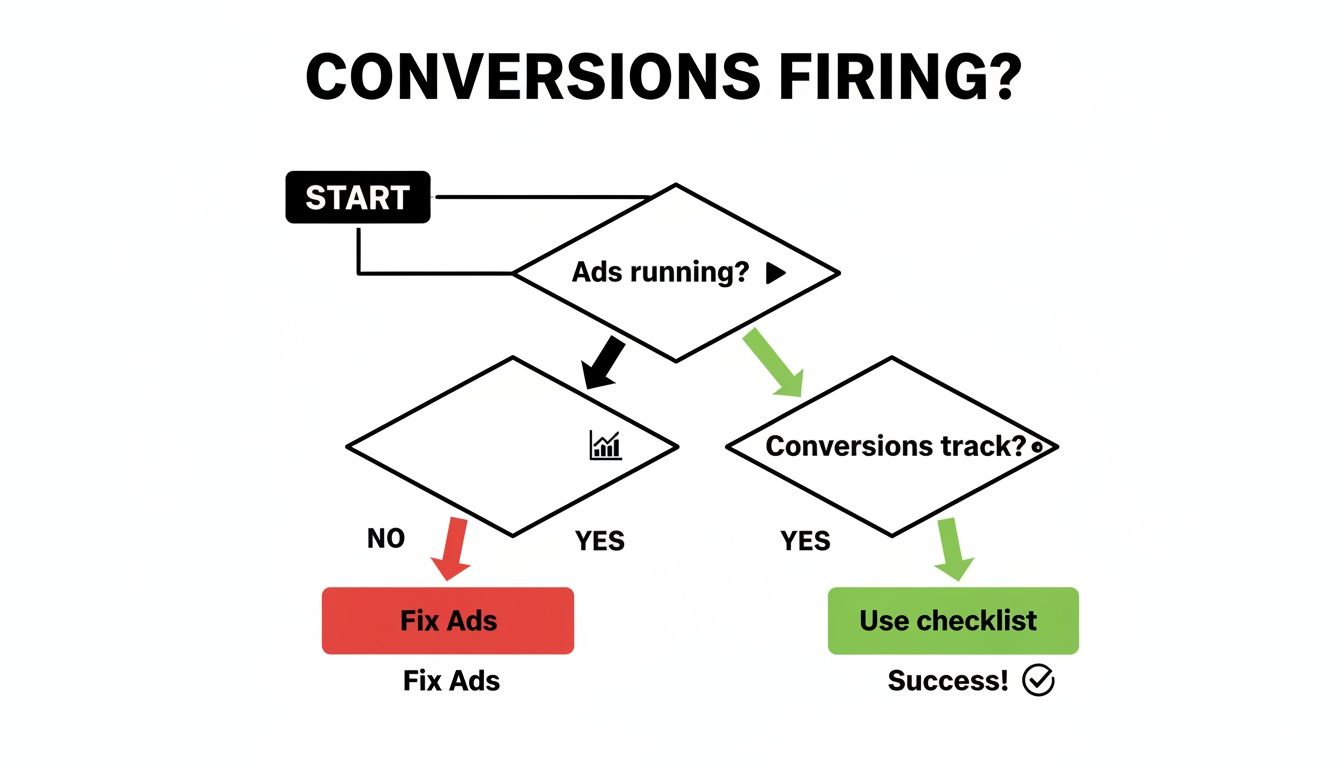
Essentially, this just helps you confirm that your ads are actually running and tracking is active before you dive into the deeper technical stuff.
Looking Beyond Obvious Tag Issues
If your tags look okay at first glance, it's time to dig into the less obvious, but equally disruptive, causes. These are the issues that can leave you scratching your head for weeks if you don't know where to look.
- Aggressive Ad Blockers: A growing number of online shoppers use ad blockers that do more than just hide ads—they actively stop tracking scripts from running. While you can't control this entirely, it's a factor you need to be aware of.
- Consent Mode Conflicts: If you're using a cookie consent banner, its settings can directly block your Google tags from firing until a user gives permission. If this isn't configured correctly, even users who click "Accept" might not be tracked properly.
- Payment Gateway Redirects: This one is huge. Some payment processors, especially older PayPal integrations, take the customer off your site to complete the payment and then fail to redirect them back to your official Shopify thank-you page. If the customer never lands on that page, your conversion tag never gets a chance to fire.
I worked with a Melbourne-based Shopify store selling boutique homewares that saw their conversions plummet to zero overnight. After checking all the usual suspects, we ran a test purchase. Turns out, their payment gateway was sending customers to a generic "payment successful" page that wasn't part of their Shopify theme and had zero tracking code on it. A simple settings tweak in their payment gateway fixed it instantly.
To get really good at this, it helps to understand the fundamentals of analytics troubleshooting. A good guide on how to find and fix Google Analytics problems can be invaluable here.
Using Google's Tools for Diagnosis
Google Tag Assistant is your go-to field tool for this diagnostic work. When you land on a page, it shows you a list of all detected Google tags and their status.
The screenshot below shows a clean, working setup as seen through the Tag Assistant tool.
You're looking for green or blue tag indicators, which signal everything is healthy. Red or yellow tags are your immediate red flags, telling you there’s a problem that needs investigating.
Think of your data flow like plumbing. A leak can happen at the source, along the pipes, or at the destination. Your job is to check each connection point methodically until you find the break. Don't just assume; always verify.
By being systematic and ruling out one potential cause at a time, you move from panicked guessing to confident problem-solving. This process ensures you're not just patching a symptom but truly fixing the root cause of why your Shopify conversions aren't firing.
The Modern Fix: Ditch the Code and Use the Google & YouTube App
If you're still wrestling with manual code injections and digging through your theme.liquid files, it's time for a change. Honestly, that old way of setting up Google Ads tracking is fast becoming obsolete, especially with Shopify constantly tweaking its checkout process.
The modern, and frankly much safer, solution is the official Google & YouTube app for Shopify.
As a digital marketing agency in Melbourne, this is our default starting point for 90% of our eCommerce clients. Why? Because it’s built to create a direct, seamless, and reliable data pipeline between your store and Google's ad platforms. It completely removes the risk of a theme update wiping out your crucial tracking scripts overnight.
This app does all the heavy lifting for you, automatically installing the necessary tracking tags across your entire site—including the all-important purchase confirmation page.
Getting the Setup Right
Setting up the app is pretty straightforward, but a couple of critical steps can trip people up. When you install it from the Shopify App Store, you'll be prompted to connect your Google account.
This is where you need to pay close attention. It's absolutely essential to:
- Connect the Correct Google Ads Account: Many business owners have multiple Google accounts or access to several Ads accounts. Double-check that you're selecting the exact one where your campaigns are running.
- Link Your Merchant Center: If you're running Google Shopping ads, you have to link the correct Google Merchant Center account. Mismatched accounts are a classic reason for data discrepancies.
- Confirm Permissions: The app will ask for permission to manage your campaigns and tracking. You must grant these permissions for it to work correctly.
Once you’re connected, the app hums away in the background, making sure your conversion tag is always where it needs to be.
The Power of Enhanced Conversions
Here's where this method truly shines. The Google & YouTube app makes it incredibly simple to enable Enhanced Conversions. This is no longer just a "nice-to-have" feature; in a world without cookies, it’s essential for accurate tracking.
Enhanced Conversions securely capture first-party customer data—like email addresses, names, and phone numbers—at the point of sale. This data is then hashed (a one-way encryption for privacy) and sent to Google.
This hashed data gives Google a way to match a sale back to an ad click even when traditional cookies are blocked by browser privacy settings or ad blockers. You're basically giving Google more signals to work with, helping you reclaim a huge chunk of conversion data that would otherwise be lost.
This became even more critical after Google's policy shifts. A key deadline forced a migration from legacy tags, which risked a 40% accuracy loss for non-compliant setups. Following this, the rollout of enhanced conversions lifted tracked purchases by 35% for compliant Australian Shopify stores. For many businesses, this meant reclaiming $20,000-$50,000 in misattributed leads every year. You can learn more about the evolution of Google's conversion tracking to see the full impact of these changes.
By using the official app, you ensure your store is aligned with Google’s best practices. You get a more resilient tracking setup that adapts to privacy changes, recovers lost conversion data, and ultimately gives you a much clearer picture of your campaign performance. If your Google Ads conversions are not firing on Shopify, installing and correctly configuring this app is one of the most effective fixes you can possibly implement.
Going Deeper with Google Tag Manager
While the native Google & YouTube app is a fantastic starting point, there comes a time when you just need more control. Maybe you want to fire specific tags for different audiences, track detailed user interactions, or plug into other marketing platforms. Sooner or later, you'll hit the app's ceiling.
This is where Google Tag Manager (GTM) steps in.
Think of GTM as a central command centre for all your marketing and analytics tags. Instead of hard-coding a dozen different scripts into your theme (and praying you don't break something), you install one GTM container and manage everything from its web-based interface. For any Shopify business serious about growth—especially the kind we work with as a digital marketing agency in Melbourne—getting a handle on GTM is a genuine game-changer. Our experience in Shopify development gives us an edge in implementing these technical setups flawlessly.
Getting GTM on Shopify Without Causing Chaos
The first step is getting the GTM container code onto your Shopify store the right way. This involves adding two small snippets of code to your theme.liquid file—one in the <head> section and another just after the opening <body> tag. A classic mistake here is leaving old tracking codes in place, which leads to double-counting conversions and making a complete mess of your data.
Pro Tip: Before you even think about adding the GTM snippets, do a full audit of your theme files and remove any old Google Ads or Analytics tags. A clean slate is non-negotiable.
Once GTM is installed, you need to feed it information. This is done by creating a data layer, which is a special script you add to your Shopify checkout settings (under "Additional scripts"). When a purchase happens, this script pushes all the juicy transaction details—like product IDs, prices, and the total order value—into the data layer for GTM to grab. This is precisely what allows you to fire a Google Ads conversion tag with a dynamic value, telling Google exactly how much each conversion was worth.
The screenshot below shows the main workspace within Google Tag Manager. This is where you'll spend your time managing all your tags, triggers, and variables.
This dashboard becomes your mission control, letting you deploy and manage all your tracking scripts without having to constantly poke around in your website's code.
Why a Custom Data Layer Is Everything
Let's be clear: a robust data layer is absolutely crucial. Without it, GTM is just an empty container. We've seen Shopify merchants in Australia facing terrifying analytics discrepancies because their tracking setup was broken.
One store owner in the Shopify Community reported a 0.7% conversion rate when their actual rate was closer to 5%. That’s a massive tracking failure that made their problems look 7x worse than they really were. This isn't some rare horror story; it happens all the time when stores rely on outdated, manually pasted code. This is why getting the data layer right is so critical.
Inside GTM, you'll use this data layer to set up a logical flow:
- Variables: These are like little baskets that capture specific data from the data layer (e.g.,
transactionTotal,transactionId). - Triggers: These tell your tags when to fire. For example, you can create a trigger for a custom "purchase" event that you define.
- Tags: These are the actual tracking scripts you want to run, like the Google Ads Conversion Tracking tag.
Setting up GTM is less about being a hardcore coder and more about logic. You're basically building a set of rules: "When a customer completes a purchase, grab the total value and transaction ID from the data layer, and send it over to Google Ads."
The Two Paths: GA4 Imports vs. Direct Google Ads Tags
With GTM in place, you have two main ways to get your conversion data into Google Ads. You can either fire a direct Google Ads conversion tag from GTM, or you can set up GA4 eCommerce events and then import those conversions into your Google Ads account.
Each has its pros and cons. A direct Google Ads tag often gives you faster, more direct attribution data. On the other hand, importing conversions from GA4 helps centralise your data, ensuring that what you see in Analytics aligns perfectly with what Google Ads is reporting.
The potential catch is that GA4 uses a different attribution model (Data-Driven by default), which can sometimes cause slight differences compared to the direct tag. For most of our clients, we start with the direct tag for maximum accuracy in Google Ads and use GA4 for the broader, more detailed behavioural analysis.
Comparing Shopify Tracking Methods
To make it clearer, here’s a look at how the native app stacks up against a custom GTM setup.
| Feature | Google & YouTube App | Google Tag Manager (GTM) Setup |
|---|---|---|
| Setup Complexity | Very simple, a few clicks | More involved; requires theme edits and data layer setup |
| Flexibility | Limited; basic purchase tracking | Extremely flexible; track anything you can imagine |
| Custom Events | Not supported | Fully supported (e.g., button clicks, video views) |
| 3rd-Party Tags | Not supported | Manage hundreds of tags (Meta, TikTok, etc.) from one place |
| Best For | Beginners, small stores, simple tracking needs | Growing businesses, complex marketing stacks, granular data needs |
While the app is perfect for getting started, a GTM setup gives you the power and flexibility to build a truly professional-grade tracking system that can grow with your business. Our expertise as a WordPress developer also informs our approach to structured data and tagging, regardless of the platform.
For anyone wanting to explore more advanced setups for different e-commerce tracking or system integrations, diving into a good collection of e-commerce implementation tutorials can be a huge help. Ultimately, GTM gives you the freedom to pick the tracking method that best suits your business goals.
Testing and Verifying Your Tracking Setup
After you've put in the work to implement a fix, it’s tempting to dust off your hands and walk away. But as a marketing agency in Melbourne, I can tell you that the most critical step is still ahead: verification. You can't just assume it's working; you have to prove it. This is where we move from theory to real-world confirmation.
The first place I always check is inside Google Ads itself. Navigate to your conversion actions and look for the 'Tag Diagnostics' tool. This feature gives you a health report on your conversion setup, telling you if Google has seen your tag recently and if there are any obvious configuration errors. A green "Active" status here is a great first sign, but it's not the final word.
Running a Live Test Purchase
To be 100% certain your tracking is fixed, you need to see it fire with your own eyes. This means running a live test purchase on your Shopify store. I recommend creating a 100% discount code so you don't have to spend real money, then go through your entire checkout process as if you were a customer.
This is where your diagnostic tools become invaluable.
- Google Tag Manager Preview Mode: If you're using GTM, this is non-negotiable. Before you start your test, enable Preview mode. As you navigate your site, a debug window will show you exactly which tags are firing on each page. When you land on the thank-you page after your test purchase, you should see your Google Ads Conversion tag pop up in the "Tags Fired" section.
- Google Tag Assistant Extension: This Chrome extension is your eyes on the page. On the final confirmation page, click the extension icon. It should show your Google Ads tag with a green or blue icon, indicating it fired successfully.
A successful tag fire is great, but you need to check the details. Click on the fired tag in either GTM Preview or Tag Assistant to inspect what data was actually sent. I'm looking for two things specifically: the Conversion Value (the total order price) and the Transaction ID (the unique Shopify order number). If these are missing or incorrect, you’re still losing valuable data.
The Importance of Ongoing Monitoring
Fixing your tracking isn't a one-time task; it's an ongoing process. Shopify updates, new app installations, and theme changes can all break your setup without warning. That’s why you need a simple monitoring routine.
Trust, but verify. This applies to your ad campaigns just as much as anything else in business. Your data is the foundation of your decision-making, so you have to treat it with respect and check it regularly.
My process is straightforward but effective. At least once a week, I open two browser tabs.
- Tab One: The Google Ads Interface. I set the date range to the last seven days and look at the "Conversions" and "Conv. value" columns.
- Tab Two: The Shopify Sales Dashboard. I set the identical date range and look at the total sales reported.
These numbers will never match 100% due to different attribution models and cross-device tracking nuances. That's perfectly normal. However, they should be in the same ballpark. If Shopify shows $5,000 in sales and Google Ads is reporting only $500, I know something is wrong and it's time to start investigating again. This simple cross-check can help you catch discrepancies early, before they have a chance to derail your campaigns.
Over the years, running a marketing agency here in Melbourne, I've seen the same questions pop up time and time again from business owners wrestling with their data. When your Google Ads conversions aren't firing on Shopify, it can feel like you're staring into a technical black hole.
To clear things up, here are some straight, no-nonsense answers to the most common questions I get.
Why Does Google Ads Say "No Recent Conversions" When I Know I've Made Sales?
This is the classic, hair-pulling symptom of broken tracking. It almost always means your conversion tag is either missing from your thank-you page, not firing correctly, or something is actively blocking it.
The usual suspects? An old tracking code from the pre-GA4 days, conflicts with other scripts (like from an upsell app), or the wrong trigger settings in your Google Tag Manager container.
Your first move should always be to use the Google Tag Assistant Chrome extension on your post-purchase page. It’ll tell you instantly if the Google Ads tag is even there.
Can I Use Both the Shopify App and Google Tag Manager?
I strongly advise against it. In fact, this is one of the first things I check when onboarding a new client. Running both the native Google & YouTube app and a manual GTM setup is a guaranteed recipe for duplicate tracking.
When this happens, every purchase gets counted twice (or more) in Google Ads, completely blowing up your conversion data and ROAS. You’ll end up making decisions based on wildly inaccurate information, like funnelling more budget into campaigns that aren't actually performing as well as they seem.
You have to pick one primary method.
- The native app: It’s simpler and works well for most stores with basic tracking needs.
- Google Tag Manager: This gives you far more flexibility for complex tracking and managing multiple marketing tags.
If you do decide to switch from one to the other, it is absolutely crucial that you remove every last trace of the old tracking code first.
How Long Until Conversions Show Up in Google Ads?
Typically, you should see conversions appearing in your Google Ads account within a few hours. That said, Google officially states it can take up to 24 hours for the data to be fully processed and attributed.
If you've run a test purchase and confirmed with GTM's Preview Mode that the tag fired, but you still see nothing after a day, there are a couple of things to check. First, make sure you're looking at the 'All conversions' column in Google Ads, as this column uses the time of the conversion, not the time of the ad click. Also, just double-check your date range is correct.
If it’s still missing, the issue might be buried in the conversion action settings within your Google Ads account itself.
Your conversion data tells a story about your customer's journey. When that data is delayed or missing, you're trying to read a story with entire chapters ripped out. Patience is key, but a persistent absence of data points to a deeper issue.
What Is Enhanced Conversions and Do I Need It?
Yes, you absolutely need it. In today's privacy-first world, Enhanced Conversions is no longer an optional extra—it’s essential for accurate measurement.
Enhanced Conversions is a feature that improves tracking accuracy by securely sending hashed first-party data (like email addresses and phone numbers) from your website straight to Google. In a world with fewer cookies and more browser restrictions, this gives Google a reliable way to match sales back to ad clicks, even when the old methods fail.
For a Shopify store, enabling this is vital for capturing sales that would otherwise get lost in the attribution void. The good news is the Google & YouTube app makes turning this on very straightforward. It’s one of the most effective ways to make your tracking more resilient and your campaign data more reliable.
At Alpha Omega Digital, we specialise in untangling these exact kinds of tracking headaches for eCommerce businesses. If you're a business with a paid ads budget of at least 3k a month, I'd love to offer you a low risk deal- get a month of paid ads management FREE. Apply now through the contact page. Alpha Omega Digital is a marketing agency based in Melbourne, Australia but also services clients from Sydney, Brisbane, Newcastle, Perth, Adelaide, Darwin and Hobart. Have a project in mind? Contact us.
[email protected]
Read more insights from our team on web design, paid ads, and growth strategy.