I know that feeling all too well. You log into your Google Ads account, ready to see the latest sales figures, but instead, you’re met with a big, fat zero. It’s a uniquely gut-wrenching moment that I’ve seen countless times with new ecommerce clients at our Melbourne agency.
Your immediate thought is probably, "My ads aren't working!" But let me reassure you: when conversions aren't tracking in Google Ads for your ecommerce store, it's almost always a technical glitch, not a campaign failure. The real problem is a broken data pipeline between your website and Google.
That Sinking Feeling When Your Google Ads Conversions Hit Zero
You've poured time, creativity, and a hefty budget into your campaigns. You can see traffic hitting your site and maybe even the sales notifications are pinging from your Shopify or WooCommerce backend. And yet, Google Ads shows a flat line. It makes you second-guess every single dollar of your ad spend.
As a digital marketing agency in Melbourne, we’ve walked hundreds of Australian businesses through this exact headache. It’s an incredibly common issue for both Shopify and WordPress store owners, and the frustration is real because it leaves you completely blind.
Without accurate conversion data, you can’t tell which ads, keywords, or audiences are actually bringing in revenue. You’re essentially flying blind, unable to scale what’s working or cut what’s bleeding you dry.
Why Did My Data Suddenly Disappear?
This breakdown in communication between your store and Google Ads can happen for a bunch of reasons. It's rarely one dramatic event; more often than not, it’s a tiny, overlooked detail that derails the whole system.
Here are a few of the usual suspects we find:
- Plugin or App Conflicts: A new app you installed on Shopify or a caching plugin on WordPress can suddenly start interfering with your tracking scripts.
- Theme Updates: Sometimes, updating your Shopify theme or a parent theme on WordPress can wipe the code where your tracking tags were placed. Gone in an instant.
- Manual Tagging Errors: A simple typo in your Google Tag Manager (GTM) container or a misconfigured conversion action is enough to stop everything cold.
- Privacy Settings and Consent Banners: If your cookie consent tool is set up incorrectly, it can block tracking tags from firing for anyone who doesn't explicitly opt-in.
These tracking failures are a massive issue here in Australia. At our marketing agency in Melbourne, we see this on a weekly basis with small and medium businesses. Over the last year, we audited more than 50 local clients and found that a staggering 35% had zero tracked conversions despite healthy traffic—often due to unverified tags on their WooCommerce sites.
By just fixing this and layering in enhanced conversions and server-side tracking, we took one retail client's ROAS from a dismal 1.2x to an impressive 4.8x in just two months. You can read more about achieving accurate Google Ads conversion tracking and see just how crucial a proper setup is.
This guide will walk you through the diagnostic process, step-by-step, helping you find exactly where the breakdown is happening. Let’s get you back in control of your data and give you a true picture of your campaign performance.
Your Essential Google Ads Conversion Tracking Toolkit
Before we roll up our sleeves and start fixing things, we need to assemble the right toolkit. Trying to figure out why your ecommerce conversions aren't tracking in Google Ads without the proper tools is like trying to fix a car engine in the dark—you’ll just be fumbling around, guessing.
Over the years, working as a digital marketing agency in Melbourne, I've refined our diagnostic process down to three non-negotiable tools. We use these for every single client audit, no matter if they're on Shopify or running a complex WordPress site built by a top developer. Let's break them down in plain English, not developer-speak.
To get the most out of this toolkit, it really helps to have a solid grasp of the basics first by understanding conversion tracking and how the data is supposed to flow from your site to Google Ads. That base knowledge turns these tools from simple checkers into powerful diagnostic instruments.
This flow chart visualises the common breakdown we see time and time again, where ad spend is happening, but a data glitch stops any conversions from being reported.
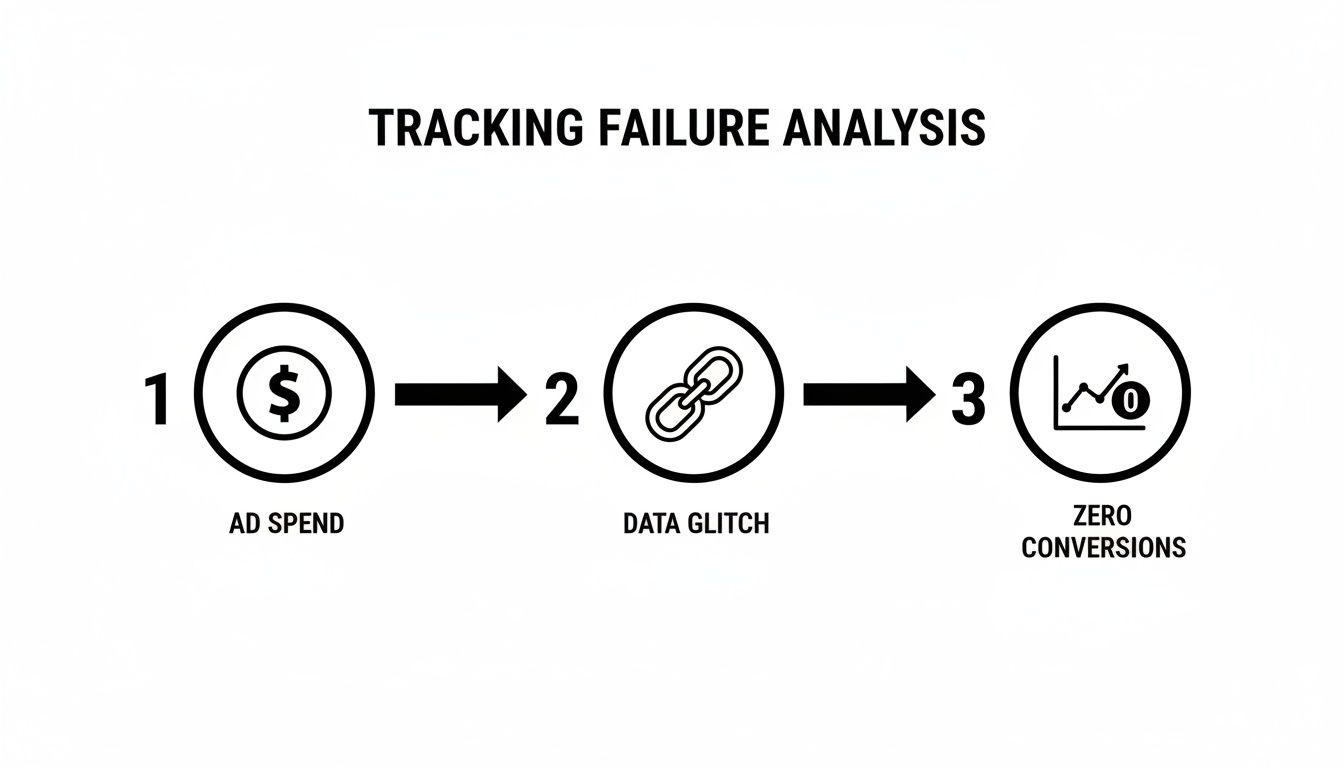
It highlights a critical point: the problem often isn't your ad spend. It's the broken link somewhere in that data chain.
Google Tag Assistant
Think of Google Tag Assistant as your on-page detective. It’s a free Chrome extension that shows you exactly which Google tags (like your Ads conversion tag or Google Analytics tag) are live on any page of your website.
When I load a client's "thank you" page after a test purchase, the first thing I do is check Tag Assistant. Is the Google Ads tag green (working)? Is it red (broken)? Or worse, is it not even there? This gives me my first and fastest clue.
A common scenario I see is a tag firing, but it shows up blue. This often points to a non-standard implementation that probably needs a closer look inside Google Tag Manager.
Google Ads Tag Diagnostics
While Tag Assistant is for digging into individual pages, the Tag Diagnostics page inside your Google Ads account is more like your sitewide health report. You can find it under Goals > Conversions > Summary, then just click on a specific conversion action.
This dashboard gives you a high-level overview and will flag common issues like:
- "Tag inactive": This means Google hasn't seen your conversion tag fire in a while, or maybe ever.
- "No recent conversions": This tells you the tag is installed, but it hasn't recorded a single conversion in the last seven days.
- "Verification needed": This one often pops up for new conversion actions before they've tracked their first conversion from a real ad click.
One of the most critical things this page helps me spot is when a conversion value is consistently being passed as "0.00". For an ecommerce store, this is a massive red flag. It means you’re tracking sales but not the revenue, which makes calculating your ROAS completely impossible.
Browser Developer Tools
This one might sound intimidating, but I promise it's simpler than you think. Every major browser (Chrome, Firefox, Safari) has built-in "Developer Tools." We mainly use the "Network" tab to see the raw data being sent from your website.
When you make a test purchase, you can filter the Network tab to see the specific request being sent to Google. This is where I can verify with 100% certainty if the correct transaction ID, currency, and purchase value are actually being sent. It’s the ultimate source of truth.
I once used this to prove to a client that a faulty plugin was firing their purchase tag twice for every sale. It was artificially inflating their conversion numbers and making their ROAS look much better than it really was.
Mastering these three tools is how you move from guessing to knowing. You can confidently investigate what's happening behind the scenes and pinpoint the exact source of the breakdown. In the next sections, we'll use this toolkit to solve specific issues on Shopify and WordPress.
Practical Fixes for Shopify Conversion Tracking Failures
Shopify is a brilliant platform, and for good reason. Its plug-and-play nature helps so many entrepreneurs get started. But from my experience as a Shopify developer in Melbourne, that same simplicity can create some real tracking black holes, especially when it comes to Google Ads.
When a Shopify store owner comes to us with their Google Ads conversions not tracking, the first place I always look is their app integrations. More often than not, the issue stems from a conflict between two seemingly helpful tools trying to do the same job.
The Classic Conflict: Google App vs. GTM
The single most common problem we run into is a conflict between the native Google & YouTube app on Shopify and a custom Google Tag Manager (GTM) setup. It’s a classic scenario: a store owner installs the app, which is a great starting point, but later decides they need more advanced tracking and sets up GTM. They often forget to disable the app's original tracking features.
This is what the Google & YouTube app looks like in the Shopify App Store. It’s a powerful tool, but it needs to play nicely with other tracking scripts.

When both are running, you risk sending duplicate data (like two purchase events for one sale) or, even worse, conflicting data that causes Google to discard it altogether. This confuses the Google Ads algorithm and completely messes up your ROAS calculations.
Here’s a quick checklist to diagnose this yourself:
- Check Your Apps: In your Shopify admin, head to "Apps" and see if the Google & YouTube app is installed.
- Review App Settings: Open the app and look at its conversion tracking settings. Is it connected to your Google Ads account? If so, it's actively sending data.
- Inspect Your Theme Code: Go to Online Store > Themes > Actions > Edit code. Open your
theme.liquidfile. Can you see GTM container snippets in the<head>and<body>? - Choose One Primary Method: This is the most important step. You have to decide on a single source of truth. If you want the control of GTM (which I strongly recommend for any serious store), you must disable the conversion tracking features inside the Google & YouTube app.
The rule of thumb I give all our clients is this: Use the native app for simplicity and the Google Shopping feed sync, but use GTM for all your event and conversion tracking. Trying to do both for conversions almost always leads to trouble.
Debugging Checkout Page Tracking
Another frequent point of failure is the Shopify checkout page. Because Shopify's checkout is a locked-down environment for security reasons, you can't just drop tracking code into it like you can with other pages. This is where most DIY tracking setups fall apart.
Your purchase event tag has to fire on the final "Thank You" page, which is also known as the Order Status page. It's the only reliable place to confirm a transaction has actually been completed.
To make sure this is working, you need to verify two things:
- The tag is actually firing on that post-purchase page.
- It's passing dynamic values like the order total and currency.
We see it all the time: a store tracks that a purchase happened, but the value is reported as $0.00. This data is useless for optimising your ad spend. Use the Tag Assistant and browser Developer Tools we talked about earlier to run a test purchase. Confirm those values are being passed correctly. If they aren't, it usually means the data layer variables in your GTM setup aren't properly configured to pull from Shopify's checkout object.
Setting Up Enhanced Conversions for Shopify
With all the privacy changes and the slow death of third-party cookies, Enhanced Conversions is no longer optional—it's essential. This feature lets you send hashed, first-party customer data (like an email address) from your Shopify checkout along with the conversion event.
Google then matches this hashed data with signed-in Google accounts, helping you reclaim conversion data that would otherwise be lost. For a Shopify store, this can make a massive difference in your reported conversions.
Getting this right requires a bit more technical work within GTM. You'll need to create variables that capture the customer's details from the data layer on the "Thank You" page and then add them to your Google Ads conversion tag. It takes a few extra steps, but the payoff in data accuracy is huge. These are the kinds of practical, hands-on fixes we implement daily for our clients as a marketing agency in Melbourne, ensuring their tracking is as robust and accurate as it can be.
Solving Tracking Puzzles in WordPress and WooCommerce
While Shopify has its quirks, WordPress and WooCommerce bring a whole different flavour of tracking challenges to the table. The platform's incredible flexibility is its greatest strength, but as any experienced WordPress developer in Melbourne will tell you, that same freedom can create a maze of tracking problems when things go wrong.
Honestly, whenever we get a call about a WooCommerce store where conversions have suddenly stopped tracking in Google Ads, our first suspect is a plugin conflict. Unlike Shopify’s more controlled ecosystem, a typical WordPress site can have dozens of plugins from different developers, all trying to inject scripts into your pages. It’s often a recipe for chaos.
Taming the Plugin Jungle
There are two usual suspects notorious for messing with Google Tag Manager (GTM) scripts: aggressive caching plugins and cookie consent banners.
- Caching Plugins: Tools like WP Rocket or W3 Total Cache are fantastic for site speed. The problem is, if they’re configured too aggressively, they can "minify" or combine JavaScript files in a way that completely breaks the GTM container's code. This can stop it from loading at all, rendering every single one of your tracking tags useless.
- Consent Banners: A poorly configured consent plugin can block GTM from firing until a user explicitly agrees. If that banner is clunky or the setup isn't properly integrated with GTM's Consent Mode, you could be losing data from a huge portion of your visitors.
The only way to figure this out is to test things systematically. Try temporarily disabling your caching plugin, clear all site caches, and then use Google Tag Assistant to see if your GTM container loads properly. If it does, you’ve found your culprit. From there, you just need to dig into the plugin's settings and find a way to exclude the GTM scripts from its optimisation process.
We had a client in Sydney whose conversion rate dropped to practically zero overnight. After hours of debugging, we found their new caching plugin was deferring the GTM script so aggressively that it never had a chance to load before a user left the thank you page. Simply adding an exclusion rule brought all their tracking back instantly.
Mastering the WooCommerce Purchase Event
Getting the purchase event right in WooCommerce is non-negotiable, and it all comes down to the data layer. Think of the data layer as a small JavaScript object that holds all the important info about a transaction—like the final price, currency, and transaction ID—and makes it available for GTM to grab.
Without a properly populated data layer on your purchase confirmation page, GTM has no way to tell Google Ads how much a sale was actually worth. You might still see conversions trickle through, but they'll all have a value of $0.00, which makes calculating your ROAS completely impossible.
Here at Alpha Omega Digital, we almost always use a dedicated GTM plugin for WooCommerce, like GTM4WP. This kind of plugin automatically creates a detailed data layer for all the key ecommerce events, especially purchases. It reliably pushes all the necessary information, including:
transaction_idvalue(the total order value)currencyitems(a full list of products in the cart)
This detailed data is an absolute goldmine. It doesn't just fix your basic purchase tracking; it also unlocks more advanced strategies, like monitoring product-level performance or setting up powerful dynamic remarketing campaigns. Correctly capturing this data is a true cornerstone of our work as a WordPress development company.
Accurate data isn't just a technical nicety—it directly impacts your bottom line. For ecommerce stores in a competitive market like Melbourne, a good conversion rate benchmark sits around 2-6%. But we often see tracking failures from ad blockers or cross-domain issues on complex WordPress sites, causing reported rates to fall below 1%. This is especially painful in retail, where Search ads consistently outperform Display. Reliable data is what allows you to optimise effectively and hit those higher benchmarks. You can explore more about Google Ads conversion data benchmarks to see how your store stacks up.
When you ensure your plugin ecosystem is playing nice and your data layer is rich with transactional details, you can transform your WooCommerce site from a tracking black box into a transparent, data-driven sales machine.
Advanced Strategies to Future-Proof Your Tracking
Fixing the immediate problem is a huge relief, but let's be honest—you don't want to be back here in six months, tearing your hair out over another tracking blackout. Moving beyond reactive fixes to a proactive strategy is what separates struggling stores from those that scale consistently. This is about building a measurement foundation that's resilient, accurate, and ready for whatever comes next.
At our marketing agency in Melbourne, we build these advanced setups not just for huge enterprise clients, but for growing ecommerce brands across Australia. The goal is to create a reliable data stream you can actually trust to make budget decisions.
The Gold Standard: Server-Side Tagging
If there's one strategy that has become the gold standard for serious ecommerce tracking, it's server-side tagging. The client-side tracking we've mostly discussed relies on the user's browser to send data. That method is getting shakier by the day.
Think about it: ad blockers, browser privacy settings like Intelligent Tracking Prevention (ITP), and network issues can all stop that data from ever leaving the user's device.
Server-side tagging through Google Tag Manager changes the game entirely. Instead of the browser sending data directly to Google, it sends a single, lightweight data stream to your own cloud server. From that controlled environment, your server then securely distributes the data to Google Ads, Google Analytics, and other platforms.
This approach offers two massive advantages:
- It Bypasses Ad Blockers: Because the data is sent from your server, not the user's browser, it's invisible to most ad blockers. This immediately recovers a significant chunk of conversion data you were previously losing.
- It Gives You Control: You own the data pipeline. This means better security and the ability to clean or modify data before it's ever sent to third-party platforms.
Setting this up involves creating a server-side GTM container and directing your website's data to it. While it's more technical than a standard setup, the payoff in data accuracy is immense. It moves your tracking from a fragile, browser-dependent system to a robust, first-party data asset.
Supercharging Your Data with Enhanced Conversions
We've touched on Enhanced Conversions, but it's crucial enough to revisit as a core part of any future-proof strategy. As third-party cookies disappear, Google's ability to connect an ad click to a purchase without first-party data is diminishing fast.
Enhanced Conversions bridges that gap. When a customer makes a purchase, you securely send their hashed (encrypted) information—like an email address or phone number—along with the conversion event. Google then matches this hashed data against its own database of logged-in users.
This allows Google to attribute conversions even when the cookie trail is broken. For example, if someone clicks an ad on their phone but later buys on their laptop, Enhanced Conversions can connect the dots, giving you a much more complete picture of your campaign's true impact.
Getting this right in GTM is key. You need to create variables that capture the user-provided data from your Shopify or WooCommerce data layer and attach them to your Google Ads conversion tag. This simple step can dramatically increase the number of attributed conversions you see, especially from cross-device journeys.
By combining the resilience of server-side tagging with the data enrichment of Enhanced Conversions, you're not just fixing today's problem. You're building a measurement framework that can withstand the privacy-focused changes shaping the future of digital advertising. This is how you ensure that when you look at your Google Ads dashboard, the numbers you see are a true reflection of your business's performance.
Common Questions About Google Ads Tracking
When your data pipeline breaks, it’s natural to have a lot of questions. Over the years, I've heard just about every single one from ecommerce clients. Here are some quick, straightforward answers to the most common ones I get when conversions aren't tracking properly.
How Long Does It Take for Conversions to Show Up?
This is the big one. After you've pushed a fix through Google Tag Manager, you're going to be anxiously checking Google Ads to see if the data is flowing.
Generally, you should see your conversion action's status flip from "Inactive" to "Active" within 24 hours, but there's a catch: it only happens after a real conversion comes from an actual ad click.
It’s not enough to just run a test purchase yourself. Google Ads needs to see a legitimate conversion that it can attribute to an ad interaction before it gives you the green light.
Why Is My Conversion Value Showing as $0.00?
Seeing conversions roll in but with zero revenue attached is a massive red flag. This almost always means your purchase tag is firing correctly, but it’s failing to pick up the dynamic transaction value from your website's data layer.
For platforms like Shopify or WooCommerce, this points directly to a misconfiguration in your GTM variables. You need to double-check that your variables are set up to correctly pull the value and currency details from the data layer on your "thank you" page. If they can't grab that info, your ROAS calculations will be completely useless.
Should I Use Google Ads Tags or Import GA4 Conversions?
I get asked this all the time. While importing conversions from Google Analytics 4 is an option, I strongly recommend using the native Google Ads conversion tag directly on your site.
Here’s why I’m so firm on this:
- Faster Data: The native tag sends data straight to Google Ads, often showing up within a few hours. This gives Google's bidding algorithms fresh, accurate data to work with much, much faster.
- Better Attribution: The native tag is built specifically for Google Ads attribution. It's better at capturing things like view-through conversions, which can sometimes be missed or attributed differently when piped through GA4.
From my experience as a digital marketing agency in Melbourne, the native tag just provides more reliable and actionable data for managing campaigns. It's the method we use for all our ecommerce clients, without exception.
Will Fixing Tracking Affect My Campaign Performance?
Absolutely, but in a very good way. When you fix your tracking, you’re finally giving Google's smart bidding algorithms the clean, accurate data they need to actually do their job. For strategies like Target ROAS or Maximise Conversion Value, this data is the fuel that makes the engine run.
You might see a short re-learning period as the algorithm adjusts to the new, correct data. But the long-term result is almost always better performance, a lower cost-per-acquisition, and a much clearer picture of what's actually driving sales for your business. Correcting your data is the first step toward scaling your campaigns profitably.
At Alpha Omega Digital, we specialise in untangling these exact technical headaches for ecommerce businesses. If you're a business with a paid ads budget of at least 3k a month, I'd love to offer you a low-risk deal—get a month of paid ads management FREE. Apply now through the contact page. Alpha Omega Digital is a marketing agency based in Melbourne, Australia but also services clients from Sydney, Brisbane, Newcastle, Perth, Adelaide, Darwin and Hobart. Have a project in mind? Contact us.