It’s a feeling I know all too well, and one of the most frustrating things an e-commerce owner can go through. Your Google Ads dashboard is lighting up, the conversion column is climbing, and on the surface, everything looks fantastic. But then you check your bank account or your Shopify sales report… and it’s crickets.
That sinking feeling when reported success doesn't match actual revenue is the exact problem we’re going to solve today. As a marketing agency in Melbourne, I’ve seen this exact issue cripple countless e-commerce businesses.
The Common Frustration When Ads Data and Sales Don’t Match
As the founder of a digital marketing agency in Melbourne, I've sat across the table from countless e-commerce owners who are pouring money into ads and seeing numbers that just don't add up to real profit. They log into their Google Ads account and see a healthy number of conversions, which suggests their campaigns are absolutely killing it.
Then, they switch over to their WordPress or Shopify backend, and the sales data tells a completely different, and far more disappointing, story. This is a common pain point for businesses using Google Ads for service based businesses too, where tracking Google ads for contact form submissions can be just as tricky.
This isn't just a minor data discrepancy; it's a critical breakdown in your marketing feedback loop. It means your budget is being optimised based on faulty signals, potentially pushing more ad spend towards campaigns that aren't actually making you money.
Why This Gap Is So Common
This problem is incredibly widespread, and honestly, it’s not always the business owner’s fault. Often, the frustration when ads data and sales don’t match can be traced back to a simple misunderstanding or a breakdown in effective sales and marketing alignment best practices. The marketing platform (Google Ads) and the sales platform (your website) just aren't speaking the same language.
Here's a perfect example of where the confusion starts, right inside your Google Ads account.
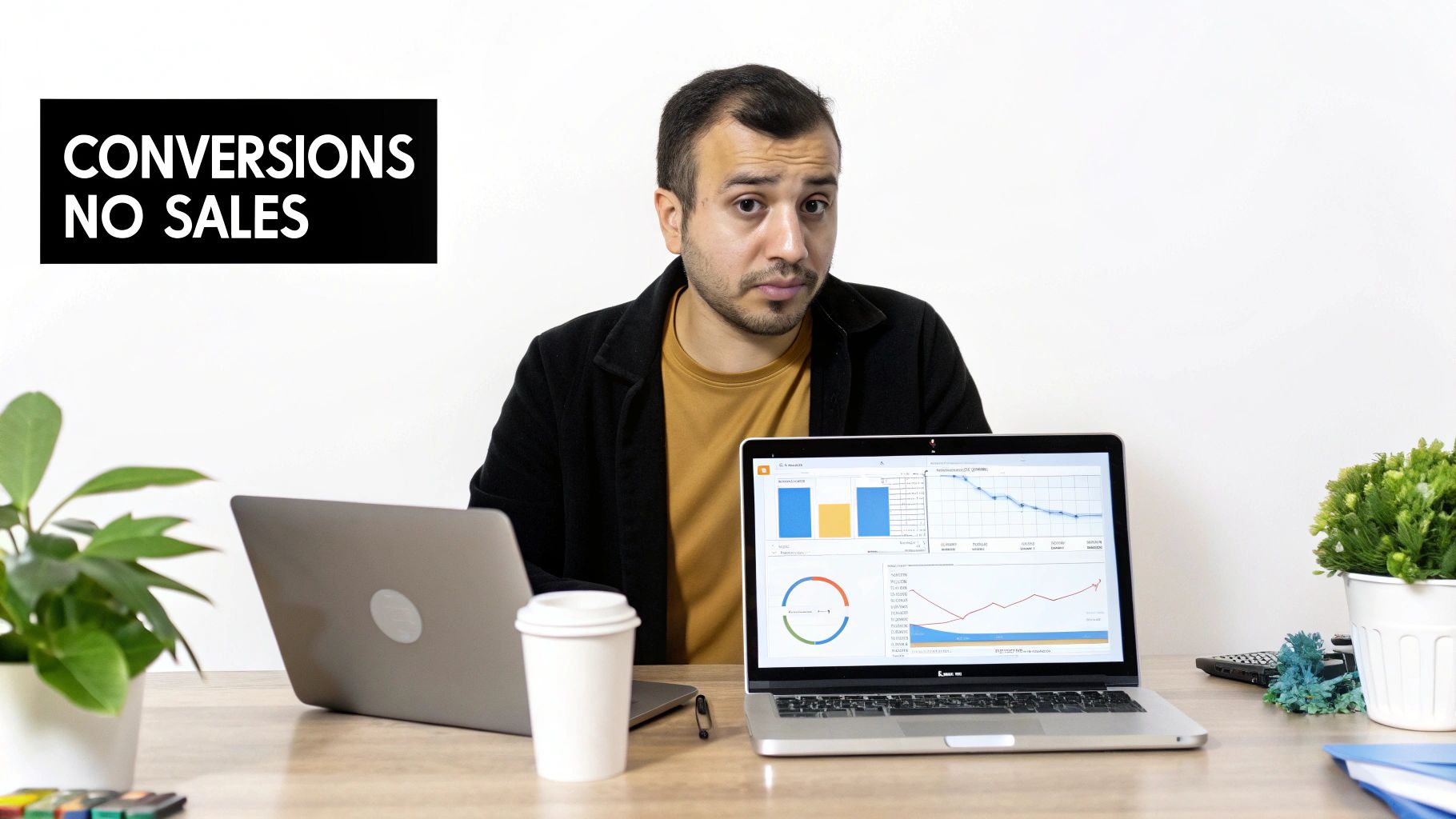
This screenshot highlights the different types of conversion sources Google can track, and that’s precisely where things go wrong. Not all of these "conversions" are sales. You might be tracking button clicks, form views, or even page loads instead of actual, hard-earned purchases. This is why a deep understanding of GTM and Google Analytics is non-negotiable for e-commerce success.
To put it into perspective, my own experience working with local e-commerce stores shows that a staggering 70-80% of businesses in Melbourne report seeing strong conversion numbers in their ad accounts but have zero actual sales to show for it. Their average Google Ads conversion rates might look healthy, but sales realisation can lag by as much as 60% due to these exact attribution mismatches.
To help you get to the bottom of this faster, I've put together a quick-glance table summarising the most frequent reasons your Google Ads conversions don't align with your sales data.
Why Your Ad Conversions and Actual Sales Disagree
| Issue | What Google Ads Shows | What Actually Happens | Where to Look First |
|---|---|---|---|
| Micro-Conversion Tracking | A "conversion" for a newsletter sign-up or PDF download. | A user completed a small action but didn't buy anything. | Google Ads > Conversion Actions |
| Counting Mismatches | Every conversion is counted, even from the same user. | One customer buys something, but their multiple clicks are all counted. | Conversion Action Settings > Count |
| Tag Firing on Page Load | A conversion is recorded when someone lands on the thank-you page. | A user bookmarks the page and revisits it, firing another "conversion." | Google Tag Manager > Triggers |
| Incorrect Attribution Model | Credit is given to the first or last ad click, ignoring other touchpoints. | A user interacts with multiple ads, but only one gets 100% credit. | Conversion Action Settings > Attribution |
| Payment Gateway Drop-offs | The user initiates checkout, firing a tag, but their payment fails. | The transaction is abandoned, but the initial intent was counted as a conversion. | Payment Processor Reports |
This table should give you a solid starting point for your investigation. Nine times out of ten, the culprit is hiding in one of these five areas.
The Key Takeaway: When Google Ads shows conversions but no sales, it's usually because you're tracking the wrong user actions. The platform is doing what you told it to do—the problem is in the instructions you've given it.
In the sections that follow, I’ll walk you through, step-by-step, how to diagnose and fix this issue for good. We'll audit your setup, align your tracking, and make sure every dollar you spend is aimed at generating real revenue, not just vanity metrics.
Getting Your Hands Dirty: Auditing Your Conversion Actions
Alright, let’s get straight to it. This is where we almost always find the culprit behind those phantom conversions: your conversion action setup.
Think of it like this—Google Ads is an incredibly obedient employee. It will do exactly what you tell it to do. If you tell it that an "Add to Cart" click is a conversion, it will report it as a success, even though no money has changed hands.
This is the number one reason I see so many e-commerce store owners pulling their hair out. Their dashboard is full of "conversions" that are actually just signs of user engagement. While these actions are useful to know, they aren't sales. Your bidding strategy, especially if you're using an automated one like Maximise Conversions or Target CPA, is optimising for these non-revenue events. That's a fast way to burn through your budget.

We need to teach Google what a real sale actually looks like.
Macro vs. Micro: Knowing What Really Matters
First up, log into your Google Ads account and head over to Goals > Conversions > Summary. This is your command centre for all things tracking. You'll see a list of every action you’ve defined as a "conversion."
I want you to mentally sort these into two buckets:
- Macro-Conversions: This is the big one, the primary goal. For any e-commerce business, this is a Purchase. It's the only action that directly puts money in your bank account.
- Micro-Conversions: These are smaller, valuable steps a user takes on their journey to becoming a customer. They show intent but aren't the final sale.
Here are some common micro-conversions I see mistakenly set as primary goals:
- Add to Cart
- Begin Checkout
- Newsletter Sign-ups
- Contact Form Submissions (for e-commerce stores)
- Account Creations
These are all great engagement signals, but they should never be treated as equal to a purchase.
Setting Your Primary and Secondary Actions (The Right Way)
This is where the magic happens. Google lets you categorise your conversion actions to give its bidding algorithms the right instructions. You need to be crystal clear about which action is the most important.
Inside your Conversion Actions settings, you can edit each action and assign it a "Goal and action optimisation" status. Here’s what you need to do:
- Find your 'Purchase' or 'Sale' conversion action and click to edit it.
- Under "Goal and action optimisation," make sure it is set as a Primary action. This tells Google, "This is the goal I want my campaigns to optimise for."
- Now, go through all your other micro-conversions, like 'Add to Cart', 'Begin Checkout', and so on.
- Edit each one and set them as a Secondary action.
By setting micro-conversions as 'Secondary', you are telling Google: "Track this for my information, but do not use it to make bidding decisions." This single change can dramatically shift your campaign performance from chasing clicks to chasing actual revenue.
This is a non-negotiable step. When Google Ads shows conversions but no sales, it's almost always because a secondary action has been incorrectly labelled as a primary one. The "Conversions" column in your main reporting view, by default, only includes actions marked as 'Primary'. By making this switch, you ensure that column reflects what you truly care about: profitable sales. For many of our clients, this goes hand-in-hand with a proper Shopify development or WordPress development audit.
For business owners who need a hand with the more technical side of tracking, like verifying tags with Google Tag Manager or ensuring your Shopify API is communicating correctly, our team of Shopify developers can help untangle the mess. A clean setup is the foundation of profitable advertising. Once this is fixed, your reporting will become infinitely more accurate and your ad spend will finally start working towards your real business goals.
Right, we've tidied up your primary conversion actions, but the job's not finished. This next bit gets a little more technical, but it’s absolutely critical if you want reporting you can actually trust. The problem is, Google Ads and your eCommerce platform—whether that's Shopify or Google Analytics 4—often have completely different ideas about who gets the credit for a sale.
Think of it like two commentators watching a footy match. One might say the forward who kicked the goal is the hero. The other might argue the midfielder who set up the play with a brilliant pass deserves all the credit. That's pretty much what happens with attribution models.
Your Shopify store, by default, probably uses a ‘Last Click’ model. It gives 100% of the credit to the very last touchpoint a customer had before buying. Google Ads, on the other hand, usually defaults to a ‘Data-Driven’ model, which tries to share the credit across multiple touchpoints in the customer's journey. Neither is wrong, but when they don't match up, your reports will never align.
The Critical Difference Between 'One' and 'Every' Conversion
This is a mistake I see all the time, and it's a massive reason why Google Ads reports conversions that never turn into sales. Inside each conversion action's settings, there’s a crucial option called ‘Count’.
You get two choices:
- One: This setting counts only a single conversion per click. It’s perfect for lead generation. If someone fills out your contact form three times after clicking one ad, you only want to count that as one lead, right?
- Every: This setting counts every single conversion that happens after a click. This is the only setting that makes sense for eCommerce sales. If a customer clicks your ad and then buys something three separate times, you absolutely want to record all three purchases.
The trouble starts when these are mixed up. If you set your 'Add to Cart' action to count 'Every', and a user adds three items to their cart, Google Ads will report three conversions. But if your actual 'Purchase' action is set to 'One', a customer buying multiple items in one transaction only gets counted once. It’s a recipe for inflated, completely misleading data.
For a Melbourne-based Shopify client of mine, we found their 'Begin Checkout' action was set to 'Every'. Every time a user refreshed the checkout page or came back to it later, another "conversion" was firing. Their Google Ads account looked incredible on paper, but their sales were completely flat. We switched their actual 'Purchase' action to 'Every' and demoted 'Begin Checkout' to a secondary action counted only 'Once'. The data immediately became clearer and far more actionable.
Key Takeaway: For any eCommerce store, your ‘Purchase’ action must always be set to count ‘Every’ conversion. All other micro-conversions, like form fills or add-to-carts, should be set to count ‘One’. This stops a single user from accidentally triggering dozens of false-positive conversions.
Aligning Your Lookback Windows
The final piece of this attribution puzzle is the ‘click-through conversion window’. This setting tells Google how far back in time it should look for an ad click after a conversion happens. The default is often 30 days, but you really need to align this with your typical sales cycle.
A critical pitfall for Melbourne eCommerce brands on WordPress or Shopify is the conversion count settings in Google Ads, leading to inflated conversion reports without corresponding sales, with AU data showing up to 40% discrepancies in campaigns. Google Ads defaults to 'one conversion per click' but allows 'every conversion,' counting repeat actions from the same user—say, multiple cart adds—while GA4 exports only observed ones, causing Google Ads to model extras via AI, spiking numbers by 25-30%. You can explore more insights on why your conversion reports might look wrong and learn about these discrepancies.
If you sell low-cost, impulse-buy items, a 30-day window might be way too long and could end up incorrectly attributing sales to old, irrelevant ad clicks. On the flip side, if you sell high-ticket items that need a lot of consideration, 30 days might be just right, or even too short.
Dive into your 'Time Lag' reports in Google Ads to see how long it actually takes for customers to convert after their first click. Adjust your lookback window to match that reality. This makes sure you're giving credit where it's actually due, not letting old clicks steal the glory from a more recent marketing effort. Getting these settings dialled in is a genuine game-changer for allocating your budget and understanding what’s truly driving your business forward.
Right, let's get into the sales that happen indirectly—the ones that are often invisible to your standard website analytics but are absolutely critical for understanding your true ad performance.
Picture this: a potential customer sees your ad on their phone during their morning commute into the Melbourne CBD. They make a mental note, get to the office, and then complete the purchase on their desktop computer at home that evening. It happens all the time.
In this scenario, Google Ads is smart. It often connects those two events and reports it as a cross-device conversion. Your Shopify or Google Analytics 4 setup, however, might miss this connection entirely. To GA4, the desktop purchase looks like it came from direct traffic, completely ignoring the mobile ad that actually started the journey.
This creates another massive data gap and is a classic reason why Google Ads is showing conversions but you see no corresponding sales in your own reports.
The Role of View-Through Conversions
It gets even more complex with view-through conversions (VTCs). This is when someone sees your ad—say, a display banner or a YouTube video—doesn't click it, but later visits your website and makes a purchase. Google Ads can attribute this sale back to the ad view, arguing that the impression influenced the eventual purchase.
Your website analytics, on the other hand, will almost certainly attribute this sale to another channel, like organic search or direct traffic, because there was no ad click to track.
For many eCommerce brands I've worked with, ignoring this data is like flying blind. You might pause a campaign that looks like it has a low ROAS, not realising it's driving a significant number of these indirect, uncredited sales.
This exact issue is a major headache for Australian businesses. I've seen tracking audits reveal discrepancies of up to 35% for Melbourne SMBs. Google Ads successfully models these cross-device journeys—crediting ads seen on mobile (which accounts for over 52% of AU traffic) that lead to desktop conversions—while a basic GA4 setup can underreport these by 20% or more. If you're keen to go deeper, Google provides detailed information on how it models these conversions.
How to Bridge the Data Gap
So, how do we get a more complete picture of the customer journey? The solution involves giving Google more data signals to connect the dots between devices and sessions.
Here are the two most important steps you need to take:
- Enable Google Signals in GA4: This is a critical setting inside Google Analytics. When you flick it on, it uses Google's signed-in user data to associate website visits from different devices with the same user. This helps GA4 better understand and report on cross-device behaviour, bringing its data much closer to what you see in Google Ads.
- Set Up Enhanced Conversions: This is a feature within Google Ads that seriously improves the accuracy of your conversion measurement. It securely sends hashed, first-party customer data (like email addresses) from your website to Google. This data is then used to match customer actions with the Google accounts they were signed into when they engaged with your ad. For a robust setup, you might also consider implementing the Meta Conversion API.
For any serious eCommerce business, especially those managed by a skilled WordPress developer in Melbourne, implementing these is not just a recommendation; it's essential for accurate reporting. Without them, you’re making budget decisions based on an incomplete and often misleading dataset. By enabling these features, you help close the gap between platforms and gain a much clearer understanding of how your ads truly influence sales, even when the path isn't a straight line.
Alright, theory is great, but now it's time to get our hands dirty. Let's move from talking about why your tracking might be broken to actively finding and fixing the damn thing.
I'm going to walk you through the exact technical audit checklist our team at Alpha Omega Digital uses for every new eCommerce client who comes to us with this exact problem. This isn't about staring at dashboards; it's a systematic, end-to-end teardown of your entire tracking infrastructure.
First, you need to understand that a customer's journey is rarely a straight line. They might see an ad on their phone during their commute, browse on their tablet later, and finally buy on their laptop. Standard tracking setups are notoriously bad at connecting these dots.
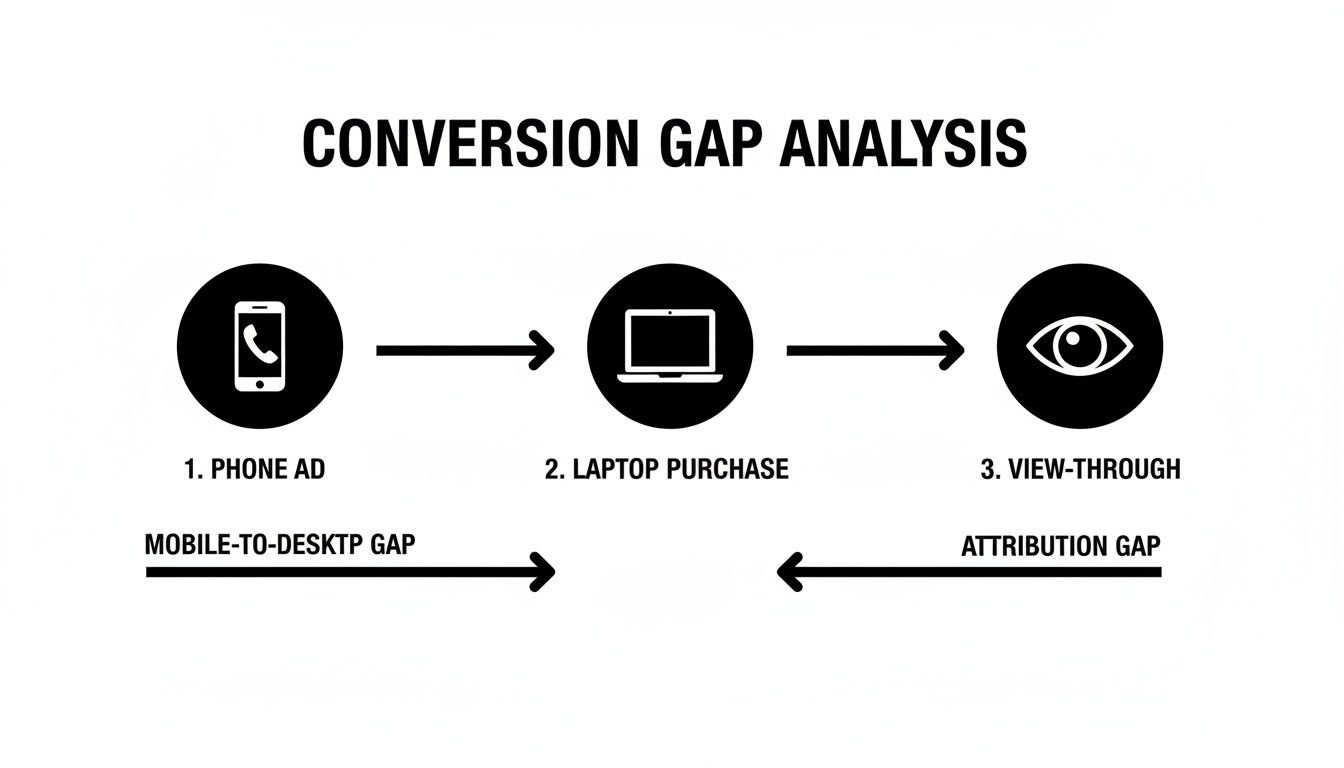
This is where the gaps appear, leading to reports that just don't match reality.
Start with Google Tag Assistant
Before you do anything else, your first stop is Google Tag Assistant. It's a free Chrome extension that shows you precisely which Google tags are firing on your website in real-time.
Head to your website, fire up Tag Assistant, and walk through the entire purchase process as if you were a customer. Add something to the cart, go to checkout, and complete a test purchase. Watch what Tag Assistant tells you on every single page.
Here’s what you’re looking for:
- Correct Tags Firing: Is your Google Ads conversion tag firing only on the post-purchase "thank you" page? It should never, ever fire anywhere else.
- No Duplicate Tags: This happens more often than you'd think, especially on WordPress sites with multiple tracking plugins or on Shopify after a theme change. You might have one tag hard-coded in the theme and another firing via Google Tag Manager. This will instantly double your reported conversions.
- Correct Conversion ID and Label: Double-check that the Conversion ID and Label in the firing tag perfectly match what's in your Google Ads account. A single typo here breaks everything.
I once had a client whose previous developer had mistakenly placed the purchase conversion tag on the 'Add to Cart' button. Every single 'Add to Cart' click was being reported as a sale. Their data was completely useless until we found and fixed that one simple mistake.
Verify Your Transaction Data
Seeing the tag fire is only half the battle. You need to be certain it's sending the right information back to Google Ads. For any eCommerce store, where Return On Ad Spend (ROAS) is king, this is absolutely critical.
Click into the specific tag that fired in Tag Assistant and look at the data layer variables it's passing. You need to confirm two key things:
- Transaction Value: Is the
valuevariable correctly pulling the total order value? Make sure it's dynamic and not just a static number. - Currency Code: Is the
currencyvariable correctly set to 'AUD' (or whatever your store's currency is)? Sending a value of '100' without the right currency code will cause absolute chaos in your reporting.
If this data is missing or wrong, it’s a massive red flag that your data layer isn't configured properly. It’s a common issue that our teams of expert Shopify developers in Melbourne and WordPress developers fix almost every week. A solid data layer is the bedrock of accurate tracking.
The Inevitable Rise of Server-Side Tagging
In a world obsessed with privacy, where browser-based tracking gets less reliable by the day thanks to things like Apple's ITP, server-side tagging is becoming non-negotiable.
Instead of a user's browser sending data straight to Google, it first sends the data to your own server container (which you manage via GTM). That server then decides what information to forward to Google, Meta, and other platforms.
Why should you care?
- Pinpoint Accuracy: It bypasses many ad-blockers and browser restrictions, giving you a much more complete and reliable dataset.
- Tighter Data Control: You get full control over exactly what data you share with third-party platforms.
- Faster Site Speed: It shifts the heavy lifting of tracking from the user's browser to your server, which can lead to faster page loads.
Setting up a server-side GTM container is more technical, no doubt. But for any serious eCommerce business spending significant money on ads, it's the future of reliable tracking. It helps ensure that when Google Ads reports conversions, it's because real sales are happening—not because a browser quirk is misfiring a tag.
Your 7-Point Conversion Tracking Health Check
Feeling a bit overwhelmed? Don't be. Just work through this checklist methodically. It’s designed to help you pinpoint exactly where the breakdown is happening so you can get your data back on track.
| Check Point | Tool to Use | What to Look For | Status (OK/Needs Fix) |
|---|---|---|---|
| 1. Primary Conversion Goal | Google Ads | Is the primary goal set to 'Purchase' and is it the correct action? No 'Page View' or 'Add to Cart' goals. | |
| 2. Conversion Counting Method | Google Ads | Is 'Count' set to 'Every' for purchases? 'One' will underreport repeat customers. | |
| 3. Tag Firing Location | Google Tag Assistant | Does the purchase tag fire only on the 'Thank You' or order confirmation page? | |
| 4. Duplicate Tags | Google Tag Assistant | Is only one conversion tag firing per purchase? Check for duplicates from plugins or old theme code. | |
| 5. Data Layer Accuracy | Google Tag Assistant (Data Layer) | Are the value and currency variables pulling the correct, dynamic transaction data? (e.g., 99.95, AUD) | |
| 6. Attribution Model Review | Google Ads (Attribution) | Does the model (e.g., Data-Driven) align with your business goals? Are you aware of its reporting implications? | |
| 7. Cross-Platform Comparison | Shopify/WooCommerce & GA4/Ads | Do sales numbers in your store backend roughly align with Ads/GA4 over a 30-day period? |
Once you’ve gone through these steps, you’ll have a much clearer picture of your tracking health and, hopefully, the source of your data discrepancy.
If you’ve run through this checklist and are still scratching your head, it might be time to bring in a professional. As a digital marketing agency in Melbourne, we specialise in untangling these technical knots.
If you're a business with a paid ads budget of at least 3k a month, I'd love to offer you a low risk deal—get a month of paid ads management FREE. Apply now through our contact page.
Got Questions? We Hear These All The Time
After years of untangling Google Ads mysteries for businesses, I've noticed the same questions pop up again and again. Here are the answers I give to our clients here at our Melbourne agency, pulled straight from real-world troubleshooting sessions.
How Long Should I Wait Before Calling a Conversion a Dud?
This really comes down to your sales cycle and your attribution settings. For most e-commerce products, a sale happens pretty quickly after a click—sometimes within minutes, often within a day or two.
But here's the catch: Google Ads might attribute a conversion to a click from 30 or even 90 days ago, depending on how you've set up your lookback window. My first piece of advice is always the same: dive into your 'Time Lag' reports in Google Ads. This report is your best friend here, as it shows you the average time it takes for your customers to move from an ad click to a genuine purchase.
If your reported conversions are consistently failing to show up as sales long after this average time lag, you're not dealing with a long sales cycle. You've got a tracking problem on your hands.
Could My Payment Gateway Be the Problem?
Yes, one hundred percent. This is a classic culprit, and we see it constantly, especially on sites with custom development.
Here’s the scenario: a customer gets sent off to a third-party payment gateway like PayPal or Stripe to complete their purchase. But instead of being redirected back to your specific 'thank you' page where your conversion tag lives, they just close the tab. Boom—the sale happened, but Google never got the memo. It’s a ghost conversion.
Make sure your payment gateway is configured to automatically and reliably redirect users back to your confirmation page. We often stumble upon this issue during WordPress development projects where the final, end-to-end checkout flow hasn't been properly battle-tested. The easiest way to diagnose this? Run a test purchase yourself and watch the entire redirect journey like a hawk.
Why Did My Conversions Suddenly Spike (But My Sales Didn't)?
A sudden jump or nosedive in conversions that isn't reflected in your bank account almost always points to a technical issue. It’s almost never a sudden, drastic shift in customer behaviour.
Think about what's changed recently. A website update, a new WordPress plugin, a Shopify theme change—any of these can easily break or even duplicate your tracking tags. I’ve seen a simple Shopify app update cause purchase tags to fire twice on the thank you page, instantly inflating conversion data by 100%.
Your first move should be to grab a tool like Google Tag Assistant and verify that your tags are still firing correctly (and only once!) on your key pages, especially your post-purchase confirmation page. Sometimes, platform-wide updates from Google or your e-commerce provider can also cause these weird, temporary blips.
Here's a simple rule of thumb: if a data shift seems too good or too bad to be true, and your sales figures tell a different story, start digging into your website's most recent technical changes.
Should I Use GA4 Goal Imports or the Google Ads Tag for Sales Tracking?
For any serious e-commerce business, my recommendation is firm: use the dedicated Google Ads tag. Ideally, you’ll want to implement it through Google Tag Manager with Enhanced Conversions switched on.
This direct method feeds richer, faster data straight into the Ads platform, which is exactly what Smart Bidding algorithms need to perform at their best. While importing GA4 goals is simpler to set up, it can introduce data delays and attribution headaches. Why? Because GA4 and Google Ads attribute conversions in fundamentally different ways.
If you want the most accurate performance data to fuel your campaign's machine learning, the native Google Ads tag is the way to go. It closes the loop properly and gives your campaigns the highest quality fuel to run on.
At Alpha Omega Digital, we've helped countless businesses in Melbourne, Sydney, and across Australia fix these exact issues. We untangle the technical mess so you can focus on data you can trust. Our services also extend to being a top Facebook ads agency and a leading seo agency in Melbourne.
If you're a business with a paid ads budget of at least 3k a month, I'd love to offer you a low risk deal- get a month of paid ads management FREE. Apply now through the contact page.