Most clients only have basic analytics setup on their website. Basic analytics tracking shows us:
- Time spent on page
- Bounce rate
- Organic traffic
- Paid traffic
- Referral traffic sources eg
- Facebook or Linked in
And this data is very important, I don’t want to discount that. But it’s doesn’t give us the granular kind of information that can help us refine our offer over time.
This is where event tracking comes in.
We can track a number of events from button clicks to page scrolls, but for now we’re going to focus on button clicks.
Why you need this for your website.
Tracking button clicks tells us a lot about the buttons you’re using and the offer you have. Let’s say you have 3 buttons that are all trying to get the viewer to contact you and these are named “contact us” “learn more” and “get in touch.” If say 100 additional people are clicking on “get in touch” that shows us they are responding to this particular call to action over the others.
So what do we do next? What i would do next is split test the buttons, and have them worded similarly and keep refining that copy over time to get more website contacts.
But first, how to install GTM properly on your website.
Ok, so in full disclosure I have google anything, mostly because the UI is horrible and they make it unnecessarily hard to do anything, but you guys want a walkthrough and here it is.
Once you’re logged into GTM:
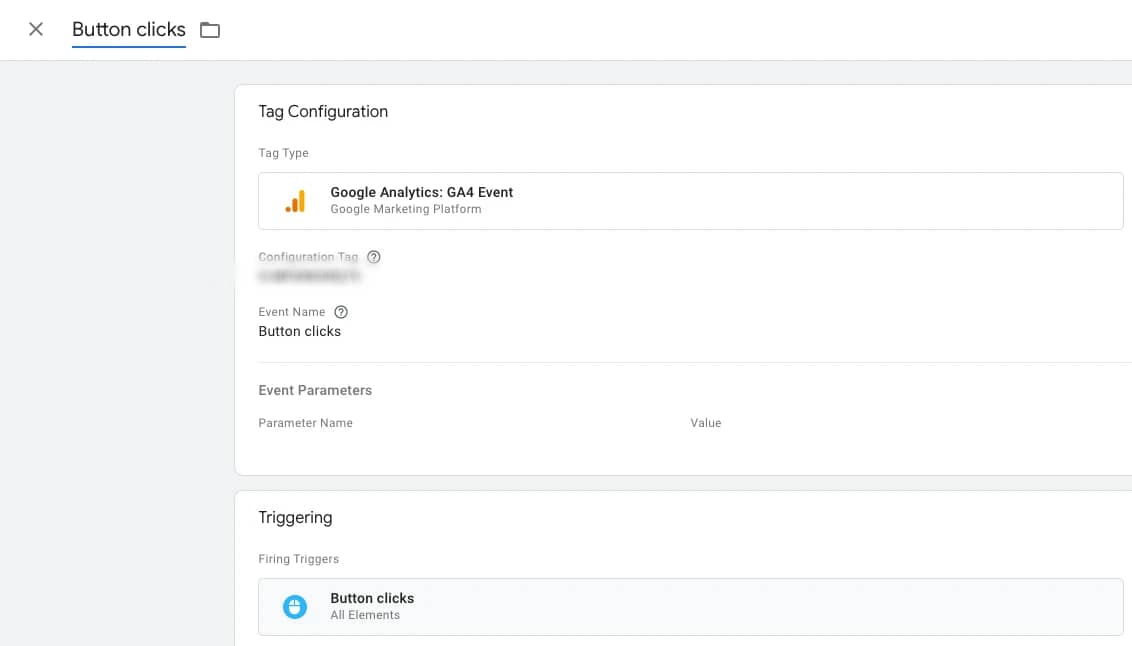
- On the workspace tab, on the left-hand menu, select “Triggers”.
- Click “New”.
- Select “Click – All Elements”.
- Select “All Clicks”
- Save
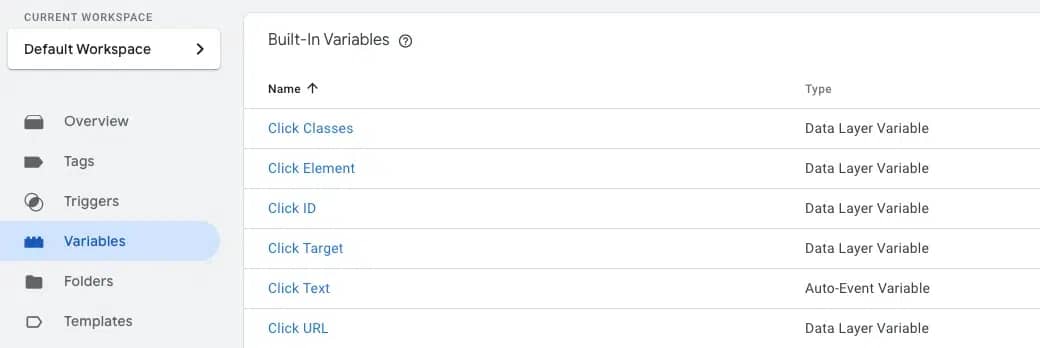
Now go to the variables tab
If you don’t have the right variables assigned to your click event, the trigger won’t fire. So you to variables and select all the ‘click’ variables available and press save.
Hit preview
After you hit the preview button your site will open in a new window.
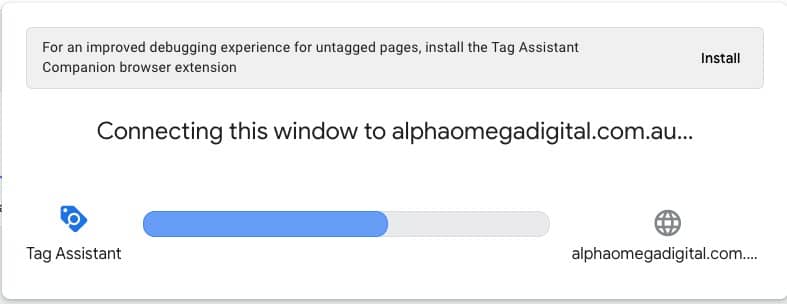
Connect your site
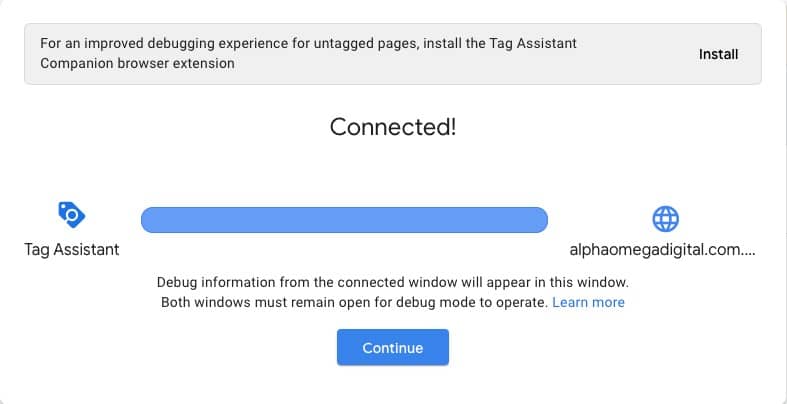
Once your site is connected, it will give you this message. When your site opens, be sure to click the button on the page, since we are tracking this click event. If we don’t fire the event, we cannot make sure it’s triggering properly. Remember, javascript is mostly an interactive language.
Check the button has fired
Now we’re going back to our variables tab and seeing the button has fired. You should get a run down like this, that shows the button has fired, and all the info relating to that button.
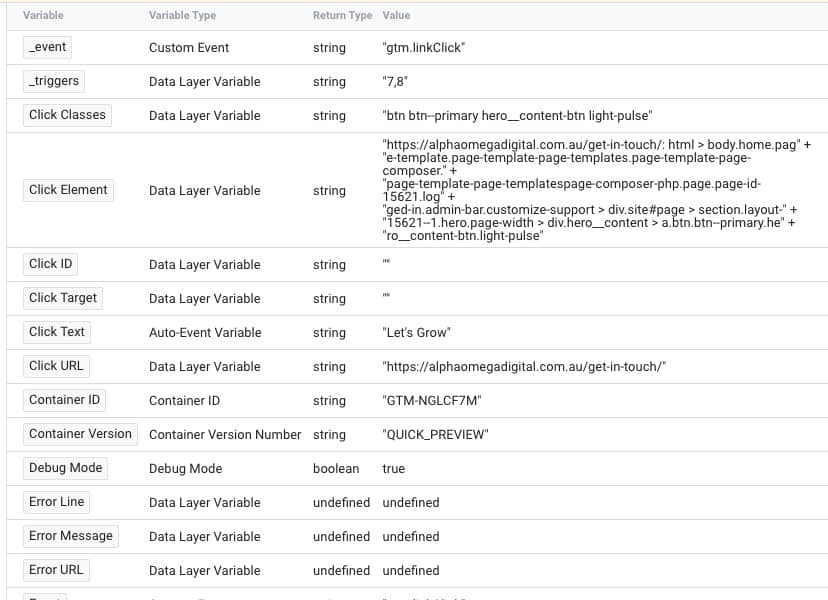
That’s it! You are now tracking click events in Google tag manager, and can modify your CTA’s over time for better conversions.