If Google Ads shows conversions but you’re not seeing sales, the cause is almost always one of three things: you’re counting actions that aren’t sales (page views, add to carts, button clicks), the same sale is being counted more than once, or real conversions are being attributed to ads that didn’t drive them. Less often, the traffic itself is low quality or the conversions are spam. The fix is to audit which conversion actions are primary, test the tags, and compare Google Ads with your actual orders or leads.
Common causes at a glance
| Symptom | Likely cause | Fix |
|---|---|---|
| Lots of conversions, few or no orders | Micro-actions (page views, add to cart, begin checkout, clicks) set as Primary conversions | Set only purchases or qualified leads as Primary; make others Secondary |
| Roughly twice as many conversions as orders | Duplicate tags: e.g. Google & YouTube app plus GTM, or an imported GA4 purchase plus a Google Ads tag, both Primary | Keep one purchase action as Primary; remove or demote the other |
| Conversions spike when the thank-you page is reloaded or revisited | No transaction ID deduplication; tag fires on every page load | Pass a transaction ID with the purchase tag so repeats are deduplicated |
| A conversion action called “Page view” or “Website visit” is Primary | Auto-created or legacy action tracking the wrong event | Check each action’s source and trigger; remove obsolete actions |
| Form “leads” that never contact you, or junk submissions | Spam/bot submissions, or tracking the submit click rather than a successful submission | Add spam protection; fire on confirmed submission; consider offline lead import |
| Phone call conversions with no real calls | Very short call duration threshold, or counting clicks on the number as calls | Use call reporting with a sensible minimum duration; separate click-to-call from calls |
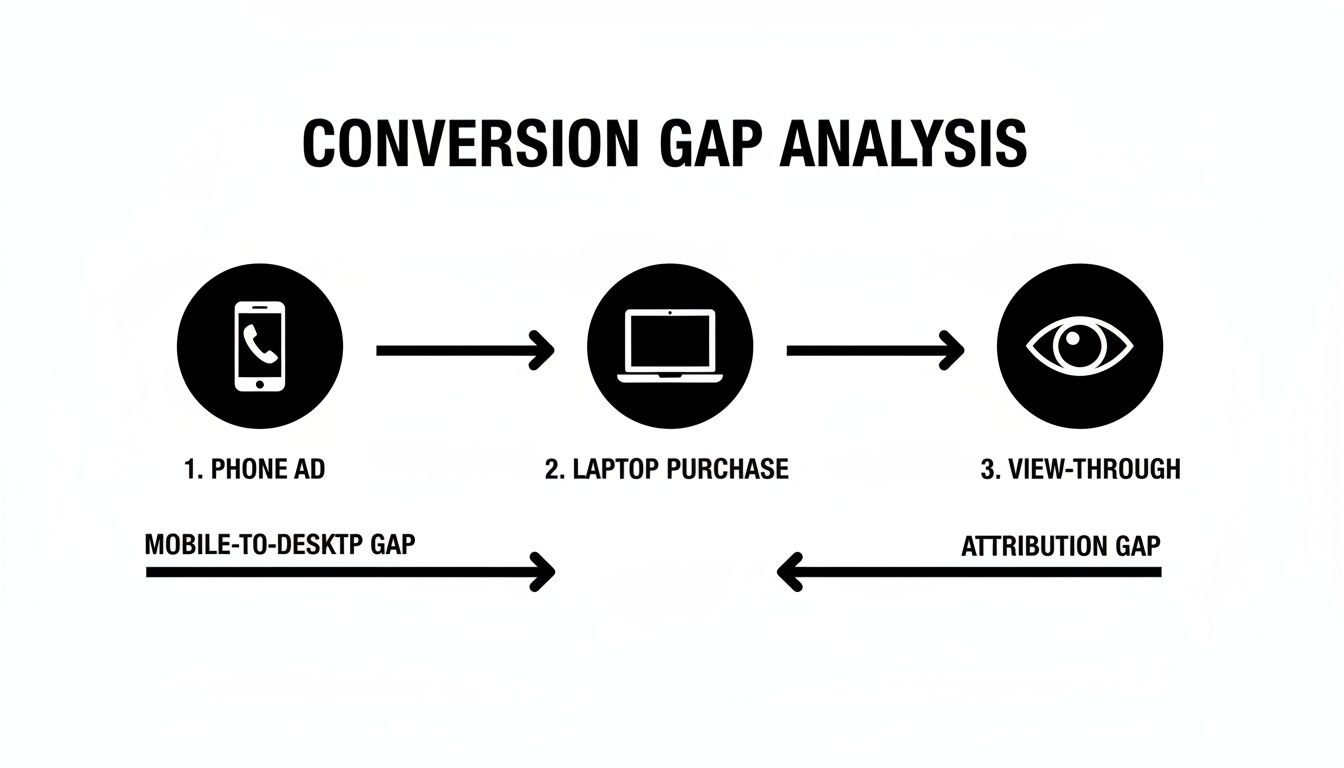
| Sales exist but fewer than Google Ads claims | Attribution: customers would have bought anyway (brand searches, returning customers), view-through or cross-device credit | Review brand vs non-brand results; check columns for view-through; compare with store data |
| Conversions from Display or Performance Max placements but no sales | Low-quality placements or engaged-view conversions | Review placement and channel reports; exclude poor placements; check conversion action settings |
Step 1: Check what you’re counting as a conversion
In Google Ads go to Goals > Conversions > Summary. For each action, check:
- Primary or Secondary. Only Primary actions appear in the Conversions column and are used by Smart Bidding. Purchases (ecommerce) or qualified leads (lead gen) should be Primary. Add to cart, begin checkout and page views should usually be Secondary.
- Source. Is it a website tag, an imported GA4 key event, a Shopify app action, or a call action? Two sources tracking the same purchase is the most common cause of inflated numbers.
- Count setting. Purchases should be counted as Every (with transaction IDs); leads usually as One.
- Value. Make sure values use real order values in AUD, not a fixed placeholder.
Also check the Conversions vs All conv. columns. “All conv.” includes secondary actions and cross-device and view-through conversions, so it’s often much higher than real sales.

Step 2: Test the tags
- Open Tag Assistant (or GTM Preview) and browse your site. Make sure no conversion tag fires on ordinary page views or clicks.
- Place a test order or submit a test enquiry. The purchase or lead tag should fire once, only on the confirmation step.
- Reload the confirmation page. On a correct set-up, the transaction ID stops it being counted again.
- Check the conversion action’s Diagnostics in Google Ads for warnings.
On Shopify, older tags placed in checkout.liquid or Additional scripts and newer app or custom pixel tracking can end up running side by side during migration. See setting up Google Tag Manager on Shopify for the current options.
Step 3: Reconcile with your real sales or leads
Export orders from your store (or leads from your CRM) for a period at least 30 days old and compare them with Google Ads conversions for the same period. Remember Google Ads reports conversions against the click date. A gap of a few per cent is normal; if Google Ads claims more conversions than total orders from all channels, the tracking is wrong.
For lead generation, importing offline conversions (qualified leads or booked jobs from your CRM) lets Google Ads optimise towards real outcomes instead of form fills. Google’s offline conversion import documentation explains the options.
Step 4: Check attribution and traffic quality
If tracking is clean but sales still seem lower than Google Ads suggests:
- Brand campaigns often claim sales from people who were going to buy anyway. Look at non-brand performance separately.
- Performance Max and Display can include view-through or engaged-view conversions. Review channel and placement reports.
- Cross-device conversions mean a sale may be credited to a mobile ad click even though the purchase was made on desktop. That’s real, but harder to see in your store’s reports.
Why it matters for bidding
Smart Bidding strategies such as Maximise conversions, target CPA and target ROAS optimise towards whatever you mark as Primary. If that includes add-to-carts or junk leads, Google will find more of those, not more sales. Fixing conversion tracking is often the single biggest improvement you can make to an account. After making changes, allow time for bidding to adjust before judging results.
Frequently asked questions
Why does Google Ads show more conversions than GA4?
The platforms use different attribution, dates and counting rules. See Google Ads vs GA4 conversion discrepancies for the full explanation.
Should I delete old conversion actions?
Set them to Secondary or remove them if they’re no longer used. Keep a note of what you changed and when, so you can explain shifts in reported performance.
Can a conversion show without anyone visiting my site?
View-through and engaged-view conversions can be credited after someone saw an ad and later converted without clicking. Whether these appear in the main Conversions column depends on the campaign type and your conversion settings, so check the view-through and engaged-view columns before assuming a problem.
If your Google Ads conversions don’t line up with real sales, our conversion tracking service can audit and fix it, and our Google Ads management (first month $99 if you already have a campaign running, then from $20 a day, no lock-in) keeps campaigns optimising towards real revenue. Get in touch if you’d like us to take a look.
Jane James
Jane James is an experienced digital marketer focused on Google Ads, Meta Ads and social media. At Alpha Omega Digital she plans, builds and manages paid advertising campaigns and conversion tracking for Australian businesses, with an emphasis on measurable leads and sales rather than vanity metrics.